Yesterday, you configured the servers on the sample network. All three UNIX servers followed the same procedure and had similar configuration files. The Windows NT server was configured using the built-in TCP/IP stack. Today you configure some clients for the network. The clients communicate with the server through a TCP/IP stack loaded on each machine. You configure three clients: one DOS, one Windows 3.x, and one Windows 95. Any of the operating systems you configured yesterday as servers can also act as clients on the sample network.
Windows 95 includes TCP/IP client software as part of the distribution software package, but it is not configured when Windows 95 is installed. This is because Windows 95 installs NetWare's IPX/SPX network protocols as the default. Today you see how to change the default protocol to TCP/IP. For the DOS and Windows 3.x machines, several products are available to offer TCP/IP protocols. I have selected two of the most popular packages to configure on these systems. The DOS machine is configured using ftp Software's PC/TCP software product. The Windows 3.x machine, running Microsoft Windows for Workgroups 3.11, is configured with NetManage's ChameleonNFS.
Configuring DOS and Windows machines is different than configuring UNIX systems because of the changes in filesystems, operating system architecture, and the individual software vendor's approaches. However, the same basic information is required, and the steps to add DOS machines are analogous to those for a UNIX system.
Although today I use two specific commercial packages for the DOS and Windows 3.11 machines, the process is similar to other vendors' TCP/IP products. The names of files and the exact configuration information might differ, but the same general principles apply.
PC/TCP from ftp Software has been available for several years and has become a de facto standard for DOS machines that want to connect with a TCP/IP network. PC/TCP runs under both DOS and Windows. It lets a user perform all the TCP/IP functions, such as ftp and telnet, and includes software for several members of the TCP family of protocols, including SNMP. Other machines can also access a PC running PC/TCP, copying its files (assuming access has been granted). Bear in mind that we are configuring this machine as a DOS platform only, even though PC/TCP offers some Windows icons. The machine might be an older device that doesn't support Windows, for example, or the user might not want to install Windows 3.X on this machine. Some DOS-based applications might not work with a Windows-based TCP/IP stack—hence the need for a DOS-only TCP/IP configuration.
PC/TCP can run TCP/IP as the sole network protocol on the PC, or it can piggy-back on top of other networks, such as Windows for Workgroups (NetBEUI and NetBIOS) or Novell NetWare (IPX/SPX). Your system administrator can decide the best configuration for your machine, depending on the nature of the network. For example, if a large Windows for Workgroups network already exists but a user wants access to a TCP/IP UNIX server, it might not make sense to convert the entire network to TCP/IP. In that case, either a second network card can be added specifically for the TCP/IP network or TCP/IP can coexist with the Windows for Workgroups system. (Remember that TCP/IP isn't particular about the network transport type.)
The sample network you are configuring is TCP/IP-based, so PC/TCP is installed to run on that network protocol only. However, because it would be useful to be able to run Windows for Workgroups over the network between the DOS and Windows 3.11 machines, the installation process you take is designed so that both NetBEUI and TCP/IP can reside simultaneously on the network.
One approach is to set the PC/TCP system to enable Windows for Workgroups and TCP/IP packets on the same network. With this approach, TCP/IP sends out IP packets, and Windows for Workgroups sends out NetBEUI packets (the default type). Both protocols use NDIS (Network Device Interface Specification) device drivers to communicate with the network card. The problem with this approach is that other machines receiving the packets might get confused because of two different packet types, and the system does not work well if an external network is to be accessed (such as the Internet), because routers do not handle NetBEUI packets.
The alternative approach is to configure Windows for Workgroups to encapsulate its message within IP packets, which can then be sent across the internetwork and the local network between TCP/IP machines with no problems. This approach has a couple of useful advantages. The network is completely IP-based, so routers can handle the traffic through internetworks. Also, a Windows for Workgroups computer on another network can communicate through the router, hence making the Windows for Workgroups services more widely available. A receiving Windows for Workgroups machine has to extract the information from the IP packet, but otherwise the system works well.
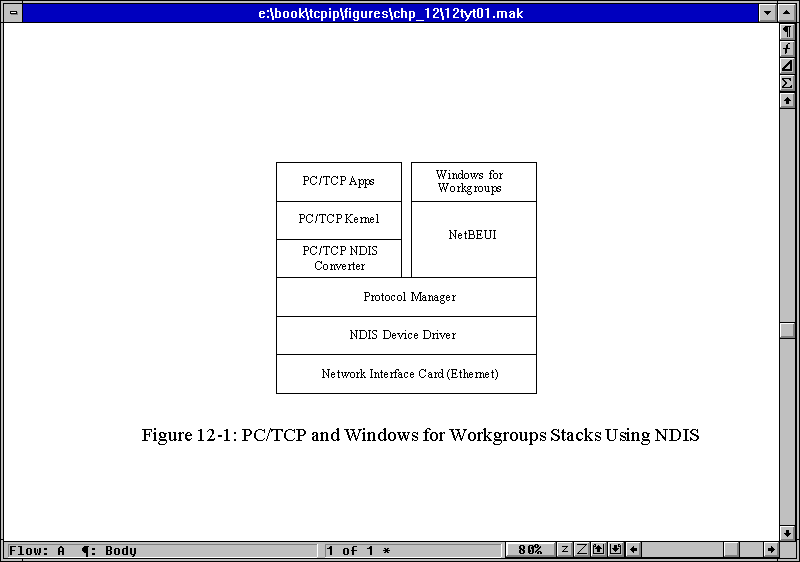
The sample network you are installing is configured to enable both PC/TCP and Windows for Workgroups to coexist using NDIS drivers. This results in two software stacks—one for PC/TCP and one for Windows for Workgroups—coexisting and communicating with the NDIS driver. This structure is shown in Figure 10.1. This is probably not the best choice for the sample network, because all the other machines on the network prefer TCP/IP packet formats, but this approach shows how PC/TCP can be configured for dual protocols on other networks.
Figure 10.1. PC/TCP and Windows for Workgroups stacks using NDIS.
PC/TCP uses a kernel that is loaded into memory when DOS boots. The kernel is a Terminate and Stay Resident (TSR) program. To ensure that the network is available at all times, the kernel load command is usually added to the AUTOEXEC.BAT file. The sample network uses a kernel called ETHDRV.EXE, which is the Ethernet driver supplied with PC/TCP. (A different kernel must be used if the network is IEEE 802.3 Ethernet, which differs from the normal DIX Ethernet.) In addition, an NDIS Converter must be loaded in the AUTOEXEC.BAT file as a device driver to provide NDIS-format packets to the protocol manager.
PC/TCP includes an automated installation procedure that copies the distribution media to the hard disk and sets up some of the configuration files. Today, most of the system is configured manually to show the necessary steps, and to enable you to verify the changes made to system files by the installation program. In practice, you would allow PC/TCP to install itself and perform the configuration automatically, then check the files for proper content.
Installation of PC/TCP requires the same basic information as TCP/IP under UNIX: the device driver, the system's name and IP address, and the names and IP addresses of other systems to be accessed. The process begins with a properly installed network card. The IRQ and memory address of the card must be known, and a device driver for it must be present for inclusion in the CONFIG.SYS file. Device drivers are usually supplied by the network card vendor, but generic drivers are also included with the PC/TCP software disks. They include drivers for the most popular types of network systems but might not include all possible cards.
After copying all the distribution files to the hard drive, the configuration can begin. The sample machine is running DOS 6.22 and Windows for Workgroups 3.11, although you are configuring the DOS operating system in particular in this section. Changes in the DOS software release number might affect the following details, but the PC/TCP installation instructions are updated for new releases. When installing PC/TCP with Windows for Workgroups, the Windows network must be installed, configured, and running properly before PC/TCP modifies the Windows files to enable both DOS and Windows to work over the network.
During the installation process, PC/TCP requires a lengthy serial number and authentication key. These verify the software and prevent a network from using many copies of the same software when only one license has been purchased.
Four files are involved in the initial configuration:
In yesterday's material, UNIX kernel parameter configuration was mentioned in passing as a way to fine-tune the behavior of the operating system with TCP/IP. In some cases, this is necessary with the DOS PC/TCP system, as well. A utility program called KAPPCONF enables the kernel parameters to be altered. The settings for the kernel are saved in a configuration file called PCTCP.INI.
The AUTOEXEC.BAT file requires environment variables to be properly set for PC/TCP and two instructions added to the file. One instruction starts the network and the other loads the Ethernet driver. The sample machine already had Windows for Workgroups installed, so a line in the AUTOEXEC.BAT file reads
C:\WINDOWS\NET START
This line starts the network. The NET START command can remain in place or be replaced with a PC/TCP command called NETBIND, which accomplishes the same thing for NDIS drivers. If both commands are in the AUTOEXEC.BAT file, an error message results when the second network startup command is executed. (The drive assignments for all the examples today might be different on other systems, as might the installation directories. Installation defaults were used throughout this chapter for both PC/TCP and Windows for Workgroups. Change their values as needed to match your system.)
After the NET START or NETBIND command, the following line must be added to the AUTOEXEC.BAT file:
C:\PCTCP\ETHDRV
This starts the PC/TCP Ethernet driver. If another network system is being used, this would be replaced with the device driver for that network (such as IEEEDRV for IEEE 802.3 Ethernet or SLPDRV for SLIP).
It is useful to define two environment variables in the AUTOEXEC.BAT file for the PC/TCP software to use when searching for file. One is a simple addition to the PATH command, adding the PCTCP installation directory to the search path. The second is an environment variable that points to the PCTCP.INI file. The two declarations look like this:
SET PCTCP=C:\PCTCP\PCTCP.INI

SET PATH=C:\PCTCP;%PATH%
The latter change to the PATH command adds C:\PCTCP to an already defined PATH. An alternative would be to edit the PATH command to include the directory on the same line as the rest of the declaration. The PC/TCP software can be run without these environment variables defined, but problems with file locations can result if commands are not executed from the installation directory.
Therefore, on the DOS machine, the completed AUTOEXEC.BAT file should have one of the following four-line combinations in it:
SET PCTCP=C:\PCTCP\PCTCP.INI

SET PATH=C:\PCTCP;%PATH%

C:\WINDOWS\NET START

C:\PCTCP\ETHDRV
or
SET PCTCP=C:\PCTCP\PCTCP.INI

SET PATH=C:\PCTCP;%PATH%

C:\PCTCP\NETBIND

C:\PCTCP\ETHDRV
When these lines are executed during the system boot process, the system displays status messages when each command is completed. The NETBIND command displays this message if it loads successfully:
MS-DOS LAN Manager v2.1 Netbind

Microsoft Netbind version 2.1
A third line might display a status message about the interrupt vector used by the system. If NETBIND couldn't load correctly, it generates a message like this:
MS-DOS LAN Manager v2.1 Netbind

Error: Making PROTMAN IOCTL call.
This usually is generated when the network is already running (such as from issuing a NET START command before the NETBIND command; you might recall that only one of these two should be in the AUTOEXEC.BAT file).
The ETHDRV command displays a message with status information when it loads successfully. It looks like this:
MAC/DIS converterFTP Software PC/TCP Resident Module 2.31   01/07/94 12:38

Copyright  1986-1993 by FTP Software, Inc.  All rights reserved.

Patch level 17637

Patch time: Fri Jan 07 14:25:09 1994

Kernel interrupt vector is 0x61

Code Segment occupies 49.0K of conventional memory

Data Segment occupies 19.5K of conventional memory

Packet Driver found at vector 0x60

        name:

        version: 30, class: 1, type: 57, functionality: 6

ifcust (PC/TCP Class 1 packet driver - DIX Ethernet) initialized

5 free packets of length 1514, 5 free packets of length 160

The Resident Module occupies 68.7K of conventional memory
If there is an error when the ETHDRV program loads, it generates an error message (of varying utility for debugging purposes). A sample error is shown here:
FTP Software PC/TCP Resident Module 2.31    01/07/94 12:38

Copyright  1986-1993 by FTP Software, Inc.  All rights reserved.

Patch level 17637

Patch time: Fri Jan 07 14:25:09 1994

PC/TCP is already loaded (interrupt 0x61). Use 'inet unload' to unload it.
This error occurred because a PC/TCP driver had been loaded prior to the ETHDRV command.
Some DOS users like to leave these commands out of the AUTOEXEC.BAT file and issue them manually. This has the advantage of reducing the amount of memory chewed up when the machine boots and the network is not required. A useful compromise is to create a small batch file that has these two commands and then run the batch file only if the network is used. Both NETBIND and ETHDRV do not seem to be critical as far as when they are loaded in the startup sequence (as opposed to some software that insists on being loaded first or last in the AUTOEXEC.BAT file).
The CONFIG.SYS file has to have drivers loaded for the protocol manager, the NDIS packet converter, and the network card driver. Systems running Windows for Workgroups might require additional drivers. The CONFIG.SYS file must have an entry setting the number of files open at one time to at least 20. If this doesn't exist, PC/TCP crashes. Add this line:
FILES=20
to the CONFIG.SYS file. Depending on the amount of memory available, the number could be readily increased. With 8MB RAM or more, a value of 40 is satisfactory. Numbers above this setting tend to be counter-productive because RAM is wasted for no reason.
The protocol manager is supplied as part of Windows for Workgroups, and one is included with the PC/TCP software package. The choice of which to use is yours or your system administrator's. If Windows for Workgroups 3.1 (not 3.11) was already loaded and functional, CONFIG.SYS has a line similar to this:
DEVICE=C:\WINDOWS\PROTMAN.DOS /I:C:\WINDOWS
The protocol manager is not always used with the Windows for Workgroups 3.11 release because it is included with other drivers within the CONFIG.SYS file (such as IFSHLP.SYS). If there is no protocol manager started at boot time, one should be added from the PC/TCP software. The entry within the CONFIG.SYS file is
DEVICE=C:\PCTCP\PROTMAN.DOS \I:C:\PCTCP
This loads the PC/TCP protocol manager. The \I at the end of the command tells the driver where to look for files (in this case, the PC/TCP installation directory).
A network card driver should appear next in CONFIG.SYS. This differs for each network card, but for the sample network DOS machine's Intel EtherExpress 16 network card, the line is
DEVICE=C:\WINDOWS\EXP16.DOS
This loads the EXP16 driver for the Intel network card. This was included with the Windows for Workgroups software, but it is also available as a generic driver. Some machines with Windows for Workgroups already installed might have this command already in the CONFIG.SYS file.
The final step is to load the PC/TCP NDIS Packet Converter. The current release of PC/TCP uses a packet converter called DIS_PKT.GUP. The line looks like this:
DEVICE=C:\PCTCP\DIS_PKT.GUP
Some systems running Windows for Workgroups 3.1 (and a few that have upgraded to 3.11) have the line
DEVICE=C:\WINDOWS\WORKGRP.SYS
in the CONFIG.SYS file. This is for Windows for Workgroups' use and is not necessary if PC/TCP is to be used as a DOS-based system only. If the file was not installed by Windows for Workgroups and the system works properly without it, there is no need to add it.
When the system boots, the device drivers are loaded in turn. Each displays a short message showing its version number. Any errors that occur are also displayed. Usually the device drivers don't cause any problems.
The properly configured CONFIG.SYS file for the DOS machine should have these lines in it
DEVICE=C:\WINDOWS\PROTMAN.DOS /I:\C:\WINDOWS

DEVICE=C:\WINDOWS\EXP16.DOS

DEVICE=C:\PCTCP\DIS_PKT.GUP
if it is using the Windows for Workgroups protocol manager. It should have the following lines if it is using the PC/TCP protocol manager:
DEVICE=C:\PCTCP\PROTMAN.DOS /I:\C:\PCTCP

DEVICE=C:\WINDOWS\EXP16.DOS

DEVICE=C:\PCTCP\DIS_PKT.GUP
As noted earlier, the network interface driver (EXP16) is different if your machine does not use the Intel EtherExpress 16 board.
The position of these lines within the CONFIG.SYS file isn't critical, although there might be problems if they are loaded into high memory with other drivers. Experimentation is the only way to find the most memory-efficient sequence.
Windows for Workgroups has a PROTOCOL.INI file as part of its setup. The file tells the system about the network cards and drivers in use. The PC/TCP PROTOCOL.INI file does the same, but it resides in the PCTCP directory.
The contents of the PROTOCOL.INI file are different for each network card and driver configuration. There must be a section labeled [PKTDRV] (all in uppercase) that defines the driver name, the binding to the network card, and any configuration information needed. The sample network's PROTOCOL.INI file looks like this:
[PKTDRV]

drivername=PKTDRV$

bindings=MS$EE16

intvec=0x60

[MS$EE16]

DriverName=EXP16$

IOADDRESS=0x360

IRQ=11

IOCHRDY=Late

TRANSCEIVER=Thin Net (BNC/COAX)
This PROTOCOL.INI file defines the packet driver as PKTDRV$, the default driver with PC/TCP. The binding to the Intel EtherExpress 16 card used on the DOS machine refers to another section in the file that lists the address, IRQ, and some specifics of the EtherExpress card. These lines could have been included in the [PKTDRV] section but were separated for compatibility with the Windows for Workgroups PROTOCOL.INI file, which is similar in layout. The EtherExpress 16 card is set to use IRQ 11, memory address 360, and use the Thin Ethernet cable connector. The intvec line in the [PKTDRV] section does not define the IRQ for the network card; instead, it is an interrupt for the driver.
A PROTOCOL.INI file for a system using a simpler network card than the EtherExpress can be shorter. A sample PROTOCOL.INI file for such a card might look like this:
[PKTDRV]

drivername=PKTDRV$

binding=MS$ELNKII

intvec=0x65

chainvec=0x67
Finding the proper settings for the variables in the PROTOCOL.INI file can be a harrowing experience. If Windows for Workgroups is installed and running, the Windows PROTOCOL.INI file is a good source of information and can sometimes be copied without modification. Otherwise, the network card documentation can sometimes help.
The PCTCP.INI file holds the kernel configuration information for PCTCP. In most cases, it can be left as supplied with the software. Tweaking the kernel parameters should be performed only after the network is installed and has been operating properly for a while. The PCTCP.INI file is quite lengthy, and care should be taken to avoid accidental changes, which can render the system inoperative.
If the supplied installation script is not used to install PC/TCP, a minimum PCTCP.INI file must be created manually. Examples are included with the distribution media, usually under the name TEMPLATE.INI. There are two ways to create the PCTCP.INI file and configure it properly. The first is to use an editor and modify the template file. The alternative is to run the kernel configuration utility KAPPCONF.
A minimum PCTCP.INI file needs to have the software serial number and activation key, the IP address, broadcast address, router address, a subnet mask, and information about the system in general. The minimum PCTCP.INI file would look like this:
[pctcp general]

domain                 = tpci.com

host-name              = sinbad

time-zone              = EST

time-zone-offset       = 600

user                   = tparker

[pctcp kernel]

serial-number          = 1234-5678-9012

authentication-key     = 1234-5678-9012

interface              = ifcust 0

low-window             = 0

window                 = 2048

[pctcp ifcust 0]

broadcast-address      = 255.255.255.255

ip-address             = 147.120.0.11

router                 = 147.120.0.1

subnet-mask            = 255.255.0.0

[pctcp addresses]

domain-name-server     = 147.120.0.1

mail-relay             = 147.120.0.1
This configuration assumes that the SCO UNIX server (147.120.0.1) is the primary server for the network. The DOS machine's name (sinbad) and IP address (147.120.0.11) are shown in the PCTCP.INI file. As different features of PC/TCP are enabled (such as SNMP and Kerberos), new sections are added to the PCTCP.INI file.
If Windows for Workgroups is to be used on the DOS machine and you are going to use the PC/TCP drivers instead of a dedicated Windows for Workgroups TCP/IP package, the Windows for Workgroups SYSTEM.INI file requires modification. The Windows for Workgroups SYSTEM.INI file must be set to use the Windows for Workgroups driver instead of the PC/TCP driver.
When the PC/TCP automatic installation process detects a copy of Windows, it makes changes to the SYSTEM.INI file for you. Some of these changes must be checked and modified to enable Windows to boot properly with the PC/TCP drivers. One of the most important changes is the commenting out of the Windows for Workgroups network driver and its replacement with the PC/TCP driver:
network.drv=C:\PCTCP\PCTCPNET.DRV
For Windows for Workgroups 3.1, confirm that the SYSTEM.INI file has these three sections, with these commands shown:
[boot]

network.drv=wfwnet.drv

[boot.description]

network.drv=Microsoft Windows for Workgroups (version 3.1)

[386Enh]

device=c:\pctcp\vpctcp.386

device=c:\pctcp\wfwftp.386
Windows for Workgroups 3.11 has a slightly different SYSTEM.INI. It should look like this:
[boot]

network.drv=wfwnet.drv

[boot.description]

network.drv=Microsoft Windows Network (version 3.11)

[386Enh]

device=c:\pctcp\vpctcp.386
At the bottom of the Windows for Workgroups SYSTEM.INI file, PC/TCP sometimes adds a block of information that looks like this:
[vpctcp]

; These option settings may be added to SYSTEM.INI, in a

;   new section "[vpctcp]".

; The next line tells VPCTCP how much copy space memory to request.

;   It is in units of kilobytes (x1024).  This value is only a bid,

;   as Windows may choose to reduce your allocation arbitrarily.

;   This value should be increased if using Windows applications which

;   call the PC/TCP DLL from another DLL; suggested value in such

;   instances is at least 28.

MinimumCopySpace=12

; The next line tells VPCTCP the segment (paragraph) number of the

;   beginning of memory reserved for devices, BIOS, and upper-

;   memory blocks (which could contain TSRs).  All calls below the

;   PSP of Windows or above this parameter are not processed by

;   the VxD but rather are passed-thru to the kernel untouched.

HiTSRFenceSegment=A000h

; eof
For most installations, this block can be left as it is. The comment lines (those beginning with a semicolon) are ignored by Windows, whereas the two variables established in these sections are used by PC/TCP. There is no need to delete this information. However, as the first note indicates, users of PC/TCP might have to increase the values to account for heavy usage.
If the target system is running Windows 3.1 (not Windows for Workgroups) there are more changes to be made, because the SYSTEM.INI file and network-dependent initialization files do not have the proper format yet. To configure a Windows system, changes must be made to the PROGMAN.INI and SYSTEM.INI files.
Windows 3.1's PROGMAN.INI file controls the startup of the Windows Program Manager. Normally, this is modified by the PC/TCP installation script, but if a manual installation has been performed, changes must be made with a text editor. The PROGMAN.INI file must have the following lines added:
[Groups]

GROUP16 = C:\PCTCP\PCTCPDOS.GRP

GROUP17 = C:\PCTCP\PCTCPWIN.GRP
The numbers next to GROUP should be higher than any existing number, usually listed sequentially for convenience. In this example, the list of groups ran to number 15.
Changes to the Windows 3.1 SYSTEM.INI file must be made in a few sections. In the [386Enh] section, add a line for the PC/TCP device driver:
device=c:\pctcp\vpctcp.386
A [vpctcp] section must be added with the following entries:
[vpctcp]

MinimumCopySpace=12

HiTSRFenceSegment=A000h
See the discussion of Windows for Workgroups SYSTEM.INI file for more information on these variables.
Some additional entries might be necessary if the network driver is located in high memory, if there is a conflict with the default serial port IRQs, or if a Token Ring network is used. See the PC/TCP installation manual for complete change information in these cases.
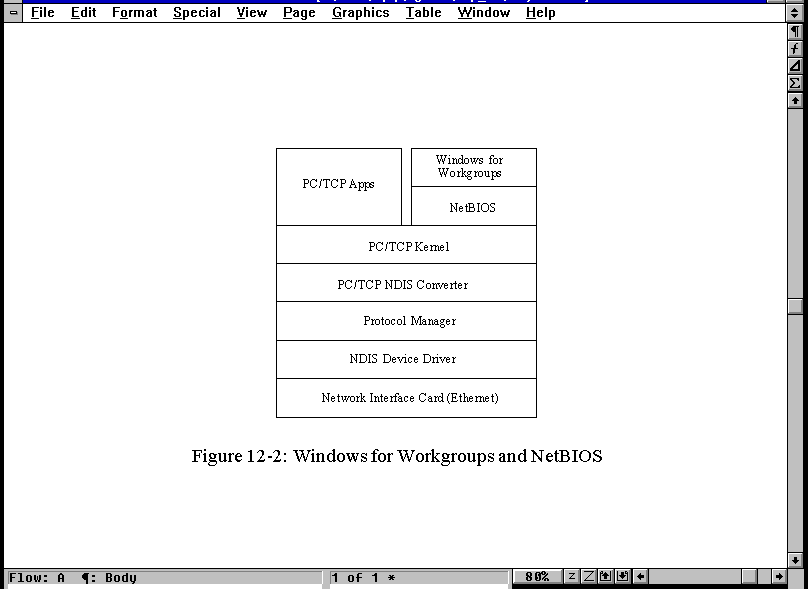
As mentioned earlier, Windows for Workgroups can be set to use IP packets. This requires a NetBIOS driver for both Windows for Workgroups and PC/TCP. The architecture of such as system is shown in Figure 10.2. The Windows for Workgroups packets are sent through PC/TCP's NetBIOS and then into the normal PC/TCP stack.
Figure 10.2. Windows for Workgroups with NetBIOS.
To install Windows for Workgroups in this manner, Windows must first be set up to use the Microsoft LAN Manager option. This is usually a matter of selecting the LAN Manager option from the Network window if it is not already the default setting. (Consult the Windows for Workgroups documentation for more information.)
The configuration files must also be changed to reflect the new architecture. The AUTOEXEC.BAT file has the network initiation command, the network kernel driver, and a NETBIOS command:
C:\WINDOWS\NET START

C:\PCTCP\ETHDRV

C:\PCTCP\NETBIOS.COM
A NETBIND can be performed instead of a NET START command, although the latter is preferable. The NETBIOS command must come after the NETBIND or NET START command.
The CONFIG.SYS file is similar to that seen earlier, with the same drivers. A sample CONFIG.SYS file for this type of architecture looks like this:
DEVICE=C:\WINDOWS\PROTMAN.DOS /I:\C:\WINDOWS

DEVICE=C:\WINDOWS\EXP16.DOS

DEVICE=C:\PCTCP\DIS_PKT.GUP
This starts the protocol manager, the card driver, and the NDIS packet converter. This example uses the Intel EtherExpress 16 card driver.
The PROTOCOL.INI file is the same as the previous example. A sample PROTOCOL.INI file for the Intel EtherExpress 16 card looks like this:
[PKTDRV]

drivername=PKTDRV$

bindings=MS$EE16

intvec=0x60

[MS$EE16]

DriverName=EXP16$

IOADDRESS=0x360

IRQ=11

IOCHRDY=Late

TRANSCEIVER=Thin Net (BNC/COAX)
Finally, the SYSTEM.INI file requires that the Windows for Workgroups network driver be used and not the PC/TCP network driver. This might require editing the SYSTEM.INI file, as noted earlier. The SYSTEM.INI file should contain the following lines:
[boot]

network.drv=wfwnet.drv

[boot.description]

network.drv=Microsoft Windows for Workgroups (version 3.1)

[386Enh]

device=c:\pctcp\vpctcp.386

device=c:\pctcp\wfwftp.386

TimerCriticialSection=50000
The last line in the [386Enh] section might have to be added manually. The version number in the [boot.description] section changes to (version 3.11) with the later version of Windows for Workgroups.
After making all the changes previously mentioned, the DOS machine is rebooted for testing. If no error messages are displayed when the new commands are executed, the system is ready for testing the TCP/IP protocol stack. The simplest test is to use ping to ensure that the TCP/IP software is talking to the local machine, then use it to test the remote machines.
Machine name information for other machines hasn't yet been added to the PC/TCP DOS system, so IP addresses must be used with ping. The following is an example of a ping command for the local machine (147.120.0.11), the SCO UNIX server (147.120.0.1), and the Windows 95 machine (147.120.0.10) on the sample network (which has not yet been installed and hence should not communicate):
C:\> ping 147.120.0.11

host responding, time = 25 ms

Debugging information for interface ifcust  Addr(6): 00 aa 00 20 18 bf

interrupts: 0 (2 receive, 0 transmit)

packets received: 2, transmitted: 3

receive errors: 0, unknown types: 0

     runts: 0, aligns: 0, CRC: 0, parity: 0, overflow: 0

     too big: 0, out of buffers: 0, rcv timeout: 0, rcv reset: 0

transmit errors: 0

     collisions: 0, underflows: 0, timeouts: 0, resets: 0

     lost crs: 0, heartbeat failed: 0

ARP statistics:

arps received: 1 (0 requests, 1 replies)

     bad: opcodes: 0, hardware type: 0, protocol type: 0

arps transmitted: 2 (2 requests, 0 replies)

5 large buffers; 4 free now; minimum of 3 free

5 small buffers; 5 free now; minimum of 4 free

C:\>

C:\> ping 147.120.0.1

host responding, time = 25 ms

Debugging information for interface ifcust  Addr(6): 00 aa 00 20 18 bf

interrupts: 0 (5 receive, 0 transmit)

packets received: 5, transmitted: 6

receive errors: 0, unknown types: 0

     runts: 0, aligns: 0, CRC: 0, parity: 0, overflow: 0

     too big: 0, out of buffers: 0, rcv timeout: 0, rcv reset: 0

transmit errors: 0

     collisions: 0, underflows: 0, timeouts: 0, resets: 0

     lost crs: 0, heartbeat failed: 0

ARP statistics:

arps received: 2 (0 requests, 2 replies)

     bad: opcodes: 0, hardware type: 0, protocol type: 0

arps transmitted: 3 (3 requests, 0 replies)

5 large buffers; 4 free now; minimum of 3 free

5 small buffers; 5 free now; minimum of 4 free

C:\>

C:\> ping 147.120.0.10

ping failed: Host unreachable: ARP failed

Debugging information for interface ifcust  Addr(6): 00 aa 00 20 18 bf

interrupts: 0 (5 receive, 0 transmit)

packets received: 5, transmitted: 7

receive errors: 0, unknown types: 0

     runts: 0, aligns: 0, CRC: 0, parity: 0, overflow: 0

     too big: 0, out of buffers: 0, rcv timeout: 0, rcv reset: 0

transmit errors: 0

     collisions: 0, underflows: 0, timeouts: 0, resets: 0

     lost crs: 0, heartbeat failed: 0

ARP statistics:

arps received: 2 (0 requests, 2 replies)

     bad: opcodes: 0, hardware type: 0, protocol type: 0

arps transmitted: 4 (4 requests, 0 replies)

5 large buffers; 4 free now; minimum of 3 free

5 small buffers; 5 free now; minimum of 4 free
The message ping failed: Host unreachable for the last attempt is expected. PC/TCP provides the user with diagnostic messages with each ping command. To suppress these messages and simply get a success or fail message, the -z option can be used:
C:\> ping -z 147.120.0.11

host responding, time = 25 ms

C:\>

C:\> ping -z 147.120.0.1

host responding, time = 25 ms

C:\>

C:\> ping -z 147.120.0.10

ping failed: Host unreachable: ARP failed
If the ping command is not successful with the local address, either the network interface card is configured incorrectly or the software installation has incorrect parameters. Check the network card for the correct IRQ and memory settings and then check the cable to ensure that it is connected properly and network terminators are in place. The software must have the correct drivers loaded, as well as the machine name, IP address, and similar information.
If the local machine responds but the remote machines do not, check the network connections. Try ping from one of the remote machines to ensure that the DOS machine can be reached by the other machines. Experience has shown that PC-based TCP/IP implementations can be quirky when booting. It is not unusual to have a ping command fail four or five times and then start working properly. Repeat the commands several times, waiting a few seconds between each attempt.
Once the machines can successfully respond to a ping request, try ftp or telnet from the DOS-based machine. An ftp attempt to log onto the SCO UNIX machine is shown here:
FTP Software PC/TCP File Transfer Program 2.31    01/07/94 12:38

Copyright  1986-1993 by FTP Software, Inc.  All rights reserved.

FTP Trying....Open

220 tpci.tpci.com FTP Server (Version 5.60 #1) ready.

Userid for logging in on 147.120.0.1? tparker

331 Password required for tparker.

Password for logging in as tparker on 147.120.0.1? abcdefg

230 User tparker logged in.

ftp:147.120.0.1> ls

.profile

.lastlogin

.odtpref

trash

Initial.dt

XDesktop3

Transferred 265 bytes in 0 seconds

226 Transfer complete.

ftp:147.120.0.1> exit
This session, which displayed the listing of files on the SCO UNIX server, shows that the ftp command worked properly. The FTP session was closed with the command exit.
Following the DOS-based test, start Windows (if it was installed) and ensure that the applications within the PC/TCP Applications program group are available and working. If problems are encountered with Windows starting, it is likely that an error was made in the SYSTEM.INI file. Check the previous instructions for the correct configuration.
After all that, the ftp Software PC/TCP system is installed and configured properly. The DOS machine can now be used for TCP/IP applications such as ftp and telnet. If some of the more powerful protocol features were installed, they are also usable. The DOS-based machine installation is now completed. The PC/TCP documentation contains instructions for using the system, as well as fine-tuning the kernel. It also helps users create gateways, routers, mail servers, and several other TCP/IP-related features.
NetManage produces a line of TCP/IP-based software specifically for Windows, Windows 95, and Windows for Workgroups. These applications are designed to provide full access to TCP/IP utilities through the Windows environment. NetManage's line of products includes a basic TCP/IP stack (called Newt), as well as full TCP/IP application packages in several forms, all called Chameleon. The system is also available for Windows NT. You are installing Chameleon on a Windows for Workgroups 3.11 machine on the sample network.
Chameleon uses the standard NDIS (Network Device Interface Specification) or the ODI (Open Data Link Interface) for communicating with the network interface card. This enables any card that uses either NDIS or ODI to be used with Chameleon.
Prior to installation of Chameleon, the same steps are performed as for the DOS-based TCP/IP package. The network interface card must be installed with suitable IRQ and memory address settings. If Chameleon is being added to an existing Windows for Workgroups system, the network card should already be installed and properly configured. The same information is required as for all TCP/IP installations: the host name, IP address, broadcast mask, subnetwork mask, and any information about gateways or routers that needs to be included.
The version of ChameleonNFS used for the sample network had its installation information slightly jumbled because of updates to both Chameleon and Windows for Workgroups. The information supplied today applies to Windows for Workgroups 3.1 and 3.11 and ChameleonNFS version 4.0, although other versions should be similar.
Chameleon can be installed over a fully functioning Windows or Windows for Workgroups system. If Windows for Workgroups is used, ensure that the network performs properly (if possible) when talking to other NetBEUI-compatible machines. In this case, that's not possible because the sample network uses only TCP/IP.
The installation procedure for Chameleon is simple. From the Program Manager's File menu, select Run, then execute the SETUP.EXE program from the first Chameleon disk. As with most Windows applications, this starts the installation program.
The changes made to the system files might cause problems, affecting Windows' capability to boot. Before installing the Chameleon software, make copies of the AUTOEXEC.BAT, CONFIG.SYS, PROTOCOL.INI, WIN.INI, and SYSTEM.INI files. If problems are encountered, these files can return the system to its original state. You should consider making a full system backup before any major changes to software, of course.
The Chameleon installation program requires a lengthy serial number and an activation key to ensure that there is only one such version on a network (this locks out multiple installations using the same serial number and activation key.) The installation script prompts for the distribution disks in order and copies all the necessary files.
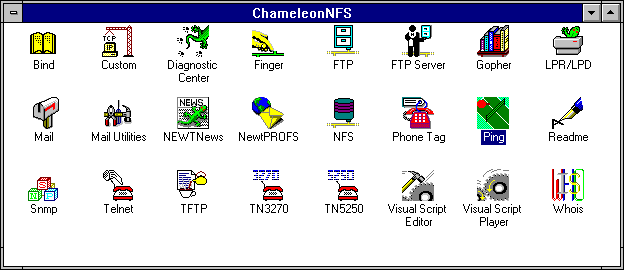
Following the installation process, Chameleon builds the program group with the Chameleon applications included. The ChameleonNFS program group is shown in Figure 10.3. After creating the program group, Chameleon starts a customization screen that lets you specify your IP address, host name, network mask, and broadcast address. Save this information and then exit out of Windows to the DOS prompt to complete the check of the installation.
Figure 10.3. The Chameleon program group.
Because of the different installation variables encountered with different network drivers, it is advisable to check the following configuration files manually:
AUTOEXEC.BAT
CONFIG.SYS
PROTOCOL.INI
SYSTEM.INI
The following sections discuss each of these files in more detail. If the files do not have the information specified in them, add them with a text editor. Failure to check the files properly can result in Windows being unable to boot properly. If this happens, copy the backup files in place of the newly modified files, restart Windows, and reinstall or reconfigure as necessary.
The changes to the AUTOEXEC.BAT file necessary to enable Chameleon to run are the inclusion of the installation directory in the PATH environment variable and a network startup command. If Chameleon is installed on a Windows for Workgroups system, the network startup command should already exist.
The PATH environment variable must be modified to include the Chameleon installation directory, which by default is C:\NETMANAG. An existing PATH statement can be altered, or a new line can be added below the existing PATH statement that looks like this:
PATH=C:\NETMANAG;%PATH%
Of course, the correct drive and subdirectory should be substituted. This chapter assumes default values throughout.
The command
C:\WINDOWS\NET START
is already in the AUTOEXEC.BAT file if a Windows for Workgroups system is used (either version 3.1 or 3.11). If Chameleon is installed on a Windows (not Windows for Workgroups) system, the NETBIND command included with the distribution software should be called as well:
C:\NETMANAG\NETBIND
Chameleon might install a SHARE command in the AUTOEXEC.BAT file if one does not exist. If one doesn't exist, it is advisable to add it if others can access the machine. SHARE is a DOS utility that activates file-sharing and record-locking. If other machines will be accessing the machine, SHARE is necessary to prevent error messages and potential system freezes when file conflicts occur.
The completed AUTOEXEC.BAT file looks like this for a Windows for Workgroups 3.1 or 3.11 installation:
PATH=C:\NETMANAG;%PATH%

C:\WINDOWS\NET START

SHARE
and like this for a Windows installation:
PATH=C:\NETMANAG;%PATH%

C:\NETMANAG\NETBIND

SHARE
If the NET START or NETBIND command is not executed properly, Windows displays an error message when it loads. In some cases, Windows can lock up while it tries to access the network drivers.
The CONFIG.SYS file might be considerably different for each installation. The HIMEM memory device driver is required, and the SMARTDRIVE caching system is recommended. All installations should have adequate values for the FILES and BUFFERS settings, which are normally set by Windows when it is installed. The CONFIG.SYS should have these values as a minimum:
BUFFERS=30

FILES=30

LASTDRIVE=Z

STACKS=9,256
This creates enough file and buffer settings to enable multiple files to be open at once. Higher values are better, although there is a trade-off of efficiency once the values exceed a certain value (depending on the amount of RAM in a system). The LASTDRIVE setting enables more drives to be open than are physically connected to the system. This is necessary when remote drives are mounted, either through Windows for Workgroups or Chameleon.
For a Windows or Windows for Workgroups 3.1 system, Chameleon adds the following commands to the CONFIG.SYS file:
DEVICE=C:\NETMANAG\PROTMAN.DOS /I:C:\NETMANAG

DEVICE=C:\NETMANAG\EXP16.DOS

DEVICE=C:\NETMANAG\NETMANAG.DOS
These load the device drivers for the protocol manager, the network interface card, and the specific protocol for Chameleon. The protocol manager and network interface card device drivers were discussed in the DOS section earlier today.
Windows for Workgroups 3.11 usually has a command in the CONFIG.SYS file that looks like this:
DEVICE=C:\WINDOWS\IFSHLP.SYS
This automatically loads all the necessary drivers. In some cases, Chameleon adds the command for the Windows for Workgroups 3.1 device drivers to the end of the CONFIG.SYS file, even if the IFSHLP.SYS driver exists. Comment out the added device drivers and try the system without them. The IFSHLP.SYS device driver should be sufficient.
The Windows SYSTEM.INI file requires a few changes to ensure that Chameleon is loaded properly. These should be effected by the installation script, but check the lines carefully anyway.
The [boot] section of the SYSTEM.INI file should have the following two lines:
[boot]

shell=progman.exe

network.drv=C:\NETMANAG\MULT400.DRV
The shell line might be different if the system uses a replacement program manager (such as Central Point PC Tools for Windows Desktop Manager). The MULT400 driver supports several networks at a time. The order of these lines in the SYSTEM.INI file is not important, as long as they appear in the proper section. The MULT400 driver takes care of loading all the necessary drivers for each network. Windows for Workgroups should have this line
network.drv=wfwnet.drv
either commented out with a semicolon at the start of the line or removed entirely. The WFWNET driver is the Windows for Workgroups network driver, which must be replaced by MULT400.
The [boot.description] section of the SYSTEM.INI file is changed to
[boot.description]

network.drv=NetManage ChameleonNFS
or a similar line if another NetManage product is installed.
The [386Enh] section has several changes made. These are as follows:
[386Enh]

device=C:\netmanag\nmredir.386

network=*vnetbios,*vwc,vnetsup.386,vredir.386,vserver.386

netmisc=ndis.386,ndis2sup.386

netcard=

transport=nwlink.386,nwnblink.386,netbeui.386

InDOSPolling=FALSE
The order of the lines in the section doesn't matter. They load the correct network device drivers into the Windows kernel.
Finally, the [network drivers] section should have these lines:
[network drivers]

netcard=elnk3.dos

devdir=C:\WINDOWS

LoadRMDrivers=YES

transport=ndishlp.sys,c:\netmanag\netmanag.dos,*netbeui
The netcard line changes depending on the network interface card used. The LoadRMDrivers line should be changed from the Windows for Workgroups default value of NO to YES.
The PROTOCOL.INI file for a Windows for Workgroups installation doesn't require many changes. The driver information should already exist. A new section added by Chameleon should look like this:
[NETMANAGE]

DRIVERNAME=netmng$

BINDINGS=MS$ELNK3
The BINDINGS line changes depending on the network interface card. It is easiest to copy the line from another section of the PROTOCOL.INI file.
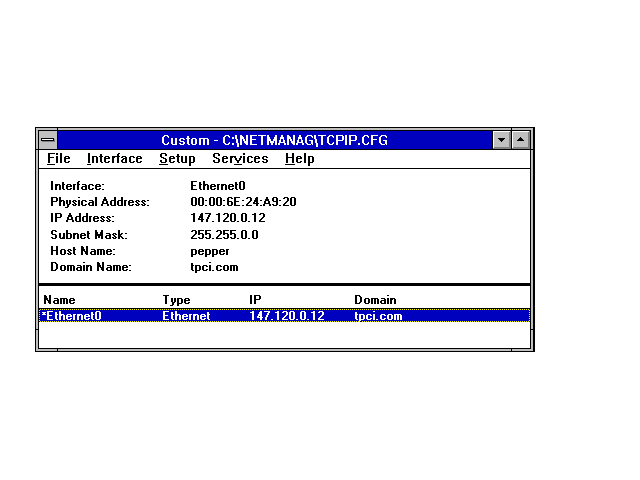
Once Chameleon has been installed and the startup files checked for proper content, you can configure the software for the sample machine. This is done through the Chameleon CUSTOM application. When started, CUSTOM displays a status screen as shown in Figure 10.4.
Figure 10.4. The Chameleon Custom screen.
If the installation routine didn't add the machine's name and IP address to the Custom screen, use the Setup menu item to select the different aspects of the configuration that must be specified. You should provide a machine name, IP address, subnet mask, and domain name, as well as the interface if not already added (Ethernet, in this case).
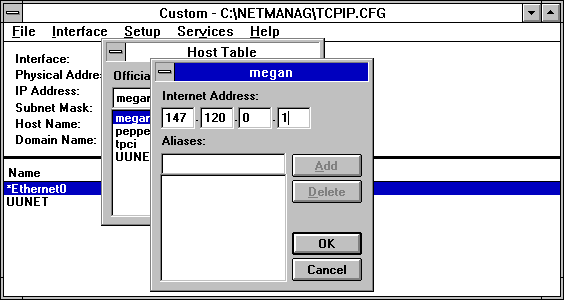
To enter the names of the other machines on the network and their IP addresses, select the Services menu Host Table option to display the Host Table dialog box. To add the other machines on the sample network, enter a name in the top portion of the window in the field titled Official Name and click the Add button. This shows a window for the IP address, which should be filled in completely. Then click OK. The IP address and the machine name are now entered into the host table. This window is shown in Figure 10.5 with the address for the machine merlin added. If a machine has more than one name, the different names can be added as aliases through this screen, as well.
Figure 10.5. Chameleon's Host Table IP Address dialog box.
After the changes to the four configuration files are completed, reboot the system and start Windows. Watch for error messages as the Chameleon lines in the CONFIG.SYS and AUTOEXEC.BAT files are executed. If Windows for Workgroups was installed and working prior to installing Chameleon, there should not be any errors.
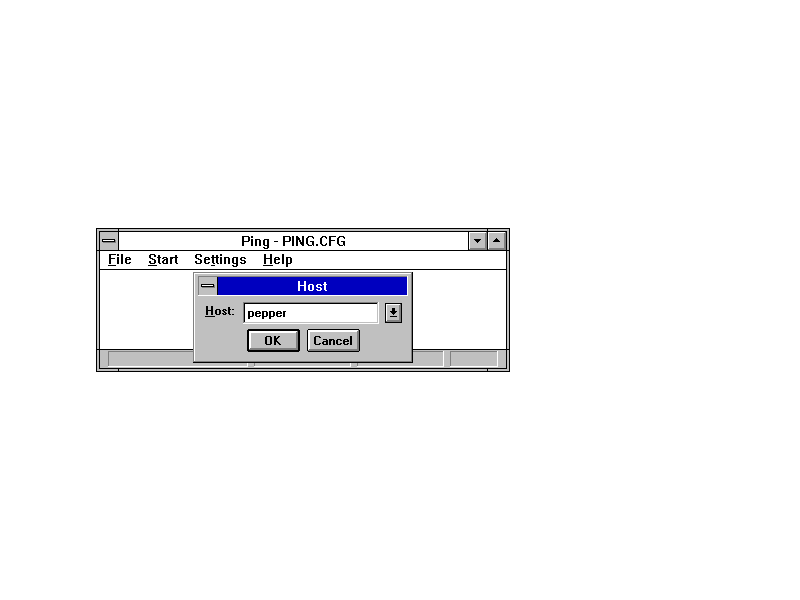
The easiest way to test the new TCP/IP system is to use the ping utility within the Chameleon program group. When selected, it displays a small dialog box. Select the Start option, which displays another dialog box waiting for a machine name. Enter the name of the local machine. This is shown in Figure 10.6 for the sample network Windows machine pepper.
Figure 10.6. Using ping to test the local host.
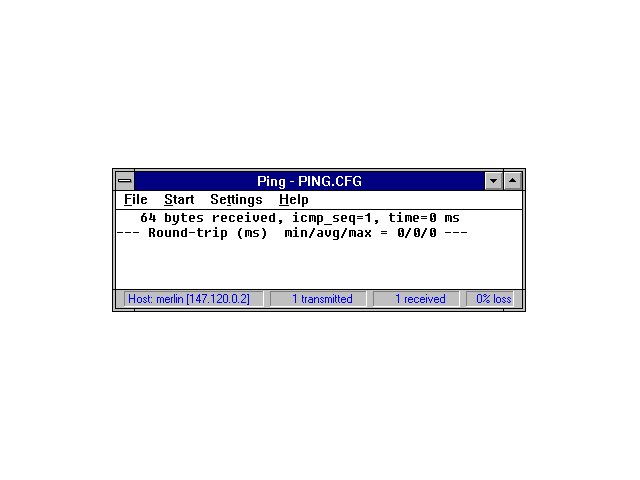
The ping window should show a successful result. This is indicated by a message showing the number of bytes received, as well as time information. A sample output from a successful attempt to ping the local machine is shown in Figure 10.7.
Figure 10.7. ping diagnostic messages.
If the ping attempt is not successful, Chameleon displays a message about the network drivers not installed or about unreachable hosts. Upon receipt of such a message, check the network card settings and all the configuration information through the CUSTOM program.
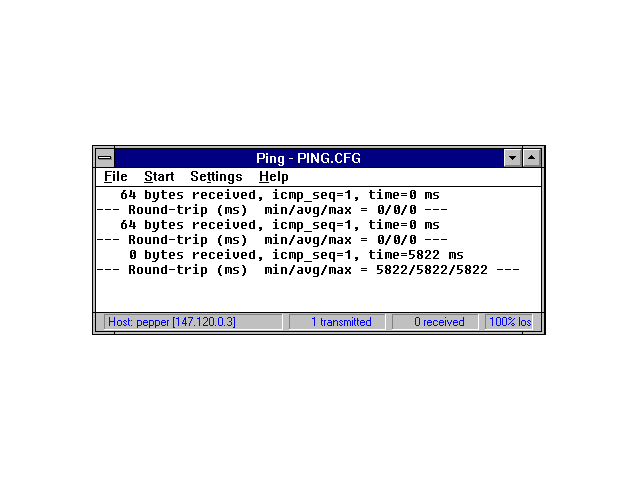
The next step is to use ping to send to another machine on the network. Figure 10.8 shows the output from a ping attempt on freya, the sample network's Linux server and to whitney, the Windows 95 machine that is not booted (and hence should fail). The system timed out on the whitney attempt, as you would expect.
Figure 10.8. ping across a network.
If the ping attempts across the network fail on all machines, the problem is likely with the configuration. Check all the configuration information (as previously noted), as well as the network cables and cards. Make sure the machines to be pinged are up and running TCP/IP.
If the network is operating properly, try the ftp and telnet applications from the Chameleon program group. Full instructions for these utilities are in the documentation. As long as a host table entry has been created and ping succeeded, the other utilities should function properly. Both provide a graphical interface that Windows users will find familiar, instead of the character-based line interface found with DOS. To configure more elaborate functions within Chameleon (such as SNMP, mail, and Gateway routing), consult the Chameleon documentation.
The final client on the sample network that requires configuration is the machine called whitney, with IP address 147.120.0.10. Windows 95 is the easiest of the three clients to configure because everything you need to set up TCP/IP under Windows 95 is included with the software distribution. Windows 95 is configured by default to use NetWare IPX/SPX as the network protocol, but switching to TCP/IP is quite easy.
Begin the Windows 95 configuration process by installing the network adapter card. In some cases, when you restart Windows 95 the operating system automatically recognizes the addition of the network card and proceeds to the configuration routines for you. In many cases, though, you have to instruct Windows 95 to look for the network adapter card.
To install a network adapter card, open the Windows 95 Control Panel and double-click the Add New Hardware icon. This calls the Add New Hardware Wizard. After you click the Next button on the introductory dialog, Windows 95 gives you the option of having the operating system try to detect the new hardware automatically.
It is usually best to let Windows 95 try to find the network adapter by itself, especially if the new card is a plug-and-play type. If Windows 95 can identify the hardware automatically, it saves you having to provide configuration information. If you want Windows 95 to go ahead and look for the network adapter, select the Yes button on this dialog (the default value) and click the Next button. Windows 95 begins searching the system for new hardware. If Windows 95 detects a new network card, it displays a screen showing the parameters it detected and lets you confirm the selection. After a reboot, the network card should be properly recognized and active.
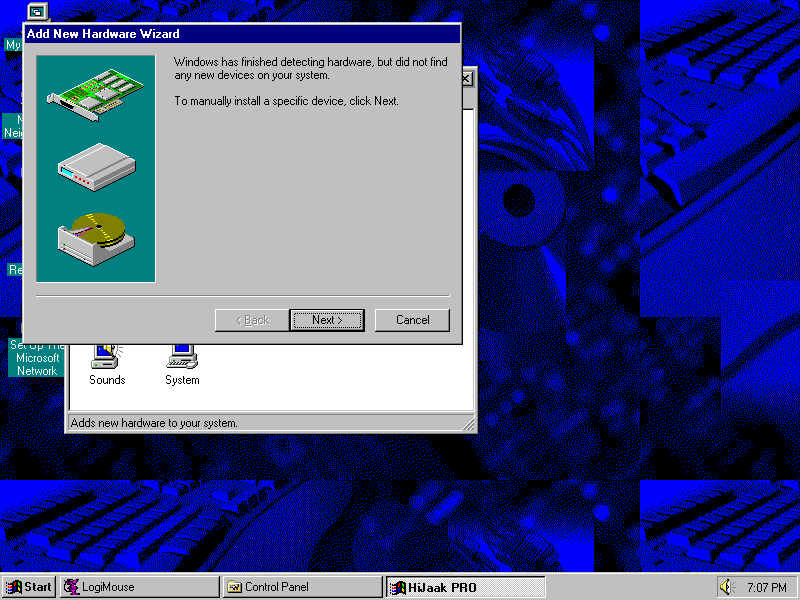
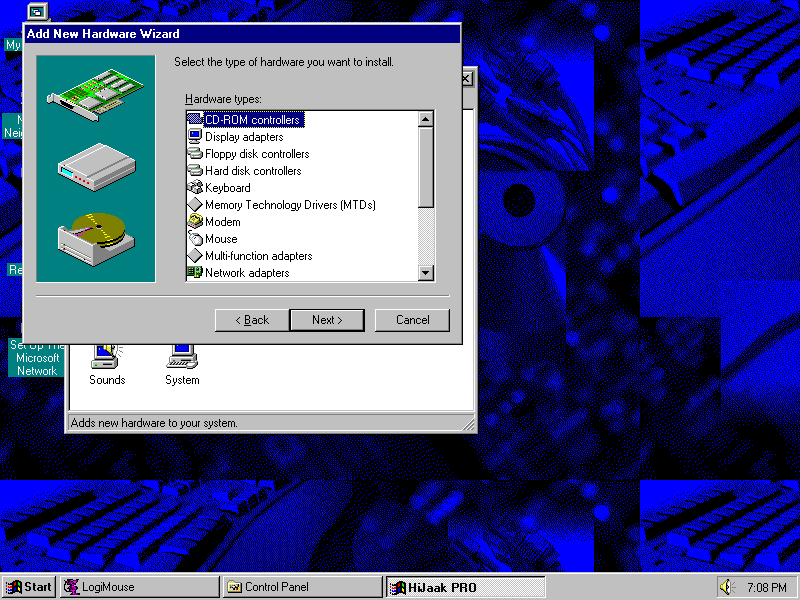
If Windows 95 didn't detect the network adapter, you have to install and configure it manually. Windows 95 shows a dialog like the one in Figure 10.9. Clicking the Next button displays the dialog shown in Figure 10.10, which asks for the type of new hardware device you are installing. In this case, you double-click the Network adapters option.
Figure 10.9. This dialog is displayed if Windows 95 couldn't detect a new network adapter card.
Figure 10.10. This dialog asks for the type of hardware you are installing.
The next dialog to appear shows a list of network adapter card manufacturers on the left side, and a more detailed list of network card models from the selected manufacturer on the right. Select the proper manufacturer of the network adapter card in the list at left by single-clicking the manufacturer's name, then select the name in the right-side list that matches the specific card.
You must be careful that you match the name of the adapter card exactly with the list, because some drivers do not work on other cards from the same manufacturer. If you select the wrong adapter card, you won't cause any damage to either the card or Windows 95, but the network will not be found properly by Windows 95. If you can't find the particular model name of the network adapter card you are using, but you have a driver supplied on disk, use the Have Disk button to read the driver into Windows 95.
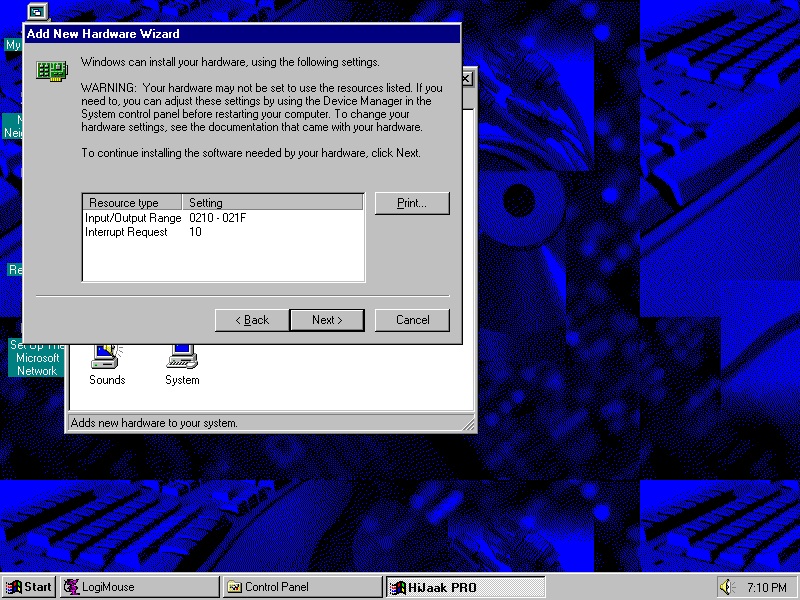
Once you have selected the proper network card name, Windows 95 displays a window with configuration information shown in it. This dialog is shown in Figure 10.11. The amount of configuration information shown in this dialog, and the settings it shows, are different for each network adapter card.
Figure 10.11. Windows 95 uses this dialog to ask for the configuration settings of the network card.
If the network adapter was found by autodetection, the settings shown in this dialog are the ones Windows 95 assumed are correct for the card. If Windows 95 couldn't find the network card, the settings shown are the default values usually used by the manufacturer. Check the documentation supplied with the network adapter card to confirm the settings. After you confirm that the displayed values are correct, Windows 95 installs the software necessary to drive the network adapter card.
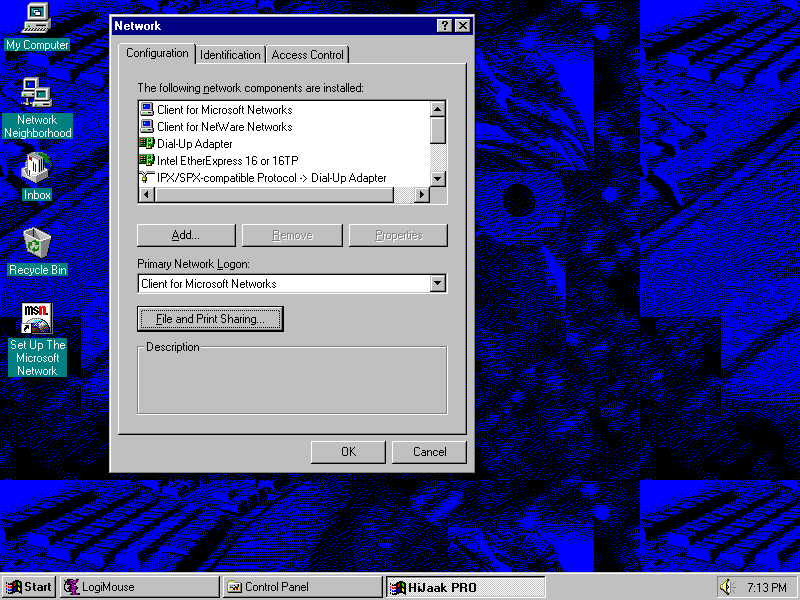
You can install the TCP/IP drivers included with Windows 95 by displaying the Network dialog. Click the Network icon in the Control Panel to display the Network dialog shown in Figure 10.12. The dialog should show a few basic entries created when Windows 95 installed itself, as well as the network hardware card. By default, the NetBEUI or NetWare (IPX) protocols might already be loaded.
Figure 10.12. The Network window shows all configured hardware and protocols.
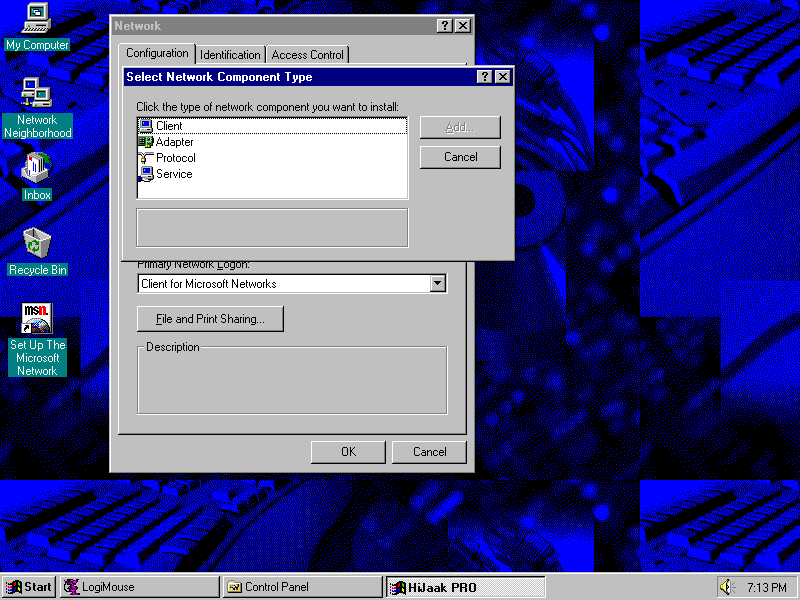
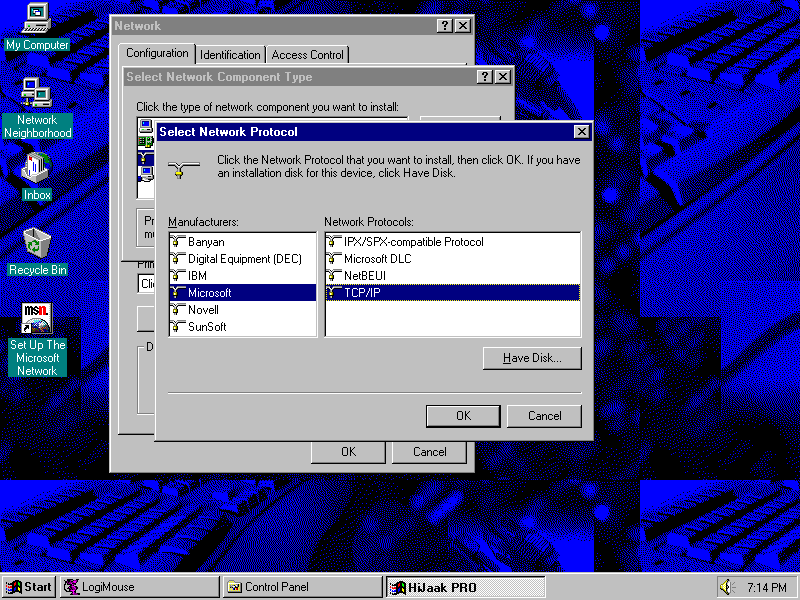
To add the TCP/IP protocol drivers to Windows 95, select the Add button below the list of installed components to display the Select Network Component Type dialog shown in Figure 10.13. This window asks for the type of component (adapter card, protocol, service, or client) you want to install. Because you want to install the TCP/IP protocol drivers, choose Protocol. The Select Network Protocol dialog, shown in Figure 10.14, is displayed.
Figure 10.13. The Select Network Component Type dialog lets you add a protocol, client, service, or adapter card.
Figure 10.14. The Select Network Protocol dialog lets you choose the type of protocol to add.
From the Select Network Protocol window, select Microsoft in the left scroll list, then move to the right window, which lists all the Microsoft protocols supplied with Windows 95. Choose the TCP/IP entry. You are returned to the Network dialog, and TCP/IP is listed as a supported protocol.
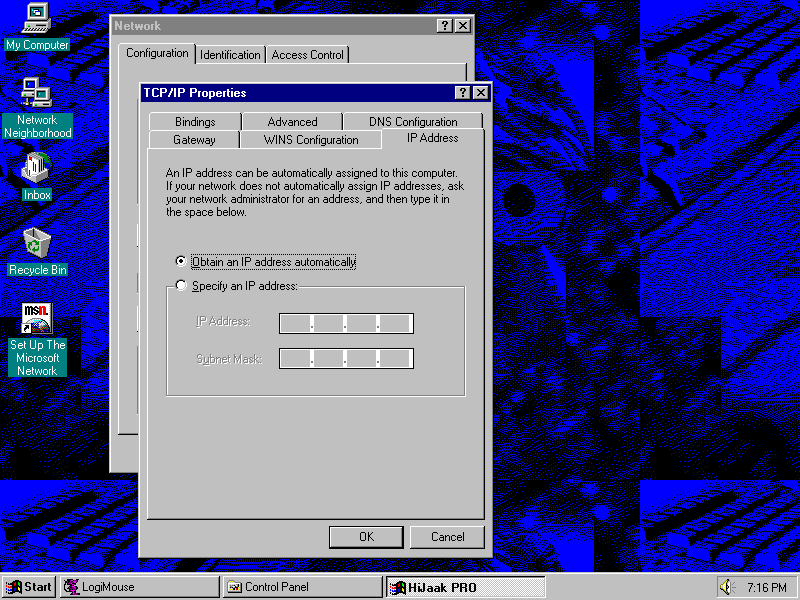
To start the configuration process, either double-click the TCP/IP protocol entry in the Network dialog list, or select the TCP/IP protocol entry and click the Properties window. The TCP/IP Properties dialog appears, as shown in Figure 10.15.
Figure 10.15. The TCP/IP Properties dialog has six pages of configuration information.
From the TCP/IP Properties dialog, six pages of information are available by choosing one of the tabs across the top of the dialog. For most installations you have to supply only a small part of this information. You can start with the IP Address page, which is the first page shown whenever the TCP/IP Properties window is displayed. Enter the IP address and subnet mask in the spaces provided, making sure to keep the four parts of the dotted-quad notation separate.
Some larger corporate networks are set up to assign IP addresses to connecting clients automatically using a special protocol. This protocol, called Dynamic Host Configuration Protocol (DHCP) servers, is usually used for machines that connect to a TCP/IP network only occasionally. If your network uses DHCP, you can select the first button on the IP Address page and let Windows 95 obtain your IP address and subnet mask for you. Most networks do not use DHCP.
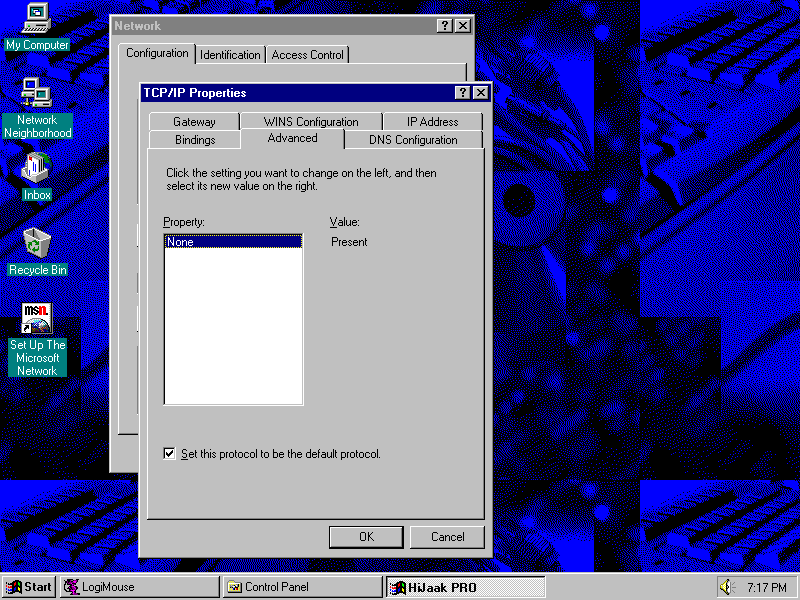
Next, you move to the Advanced page of the TCP/IP Properties dialog by selecting the Advanced tab at the top of the dialog. This dialog lets you specify that TCP/IP is the default protocol used by the Windows 95 machine by clicking the option at the bottom of the page, as shown in Figure 10.16. If your Windows 95 system is attached to a TCP/IP network and uses TCP/IP most of the time, make sure you select this option; otherwise, Window 95 tries to use NetBIOS or IPX/SPX on the TCP/IP network.
Figure 10.16. Select the default option from the Advanced page of the TCP/IP Properties dialog.
For many simple TCP/IP networks, that's all the information you need to supply. Windows 95 now loads the proper drivers into the operating system, using the values supplied for the IP address and subnet mask. After the software has been properly loaded, Windows 95 must be restarted to make the TCP/IP drivers effective.
Some TCP/IP systems require extra configuration to provide Windows 95 with the name of the servers, gateways, or other details. You can make many of these configuration steps at any time, but some services might not be available to you until you do. All of these changes are made through the TCP/IP Properties dialog used to set the IP address and subnet mask.
The WINS Configuration page of the TCP/IP Properties window is used to instruct your Windows 95 system how to talk to a Windows Internet Naming Service (WINS) server. WINS lets you use the NetBIOS protocol on a TCP/IP network. Most networks don't use WINS, so you can probably ignore this page completely unless you know you will need to use WINS on your network. If WINS is required on your network, enter the IP address of the primary (and secondary, if used) WINS servers, as well as the Scope ID. If WINS is not used on your network, make sure the Disable WINS Resolution option is selected.
The Gateway page lets you specify where your network's gateways are. Gateways are used to connect to other networks, including the Internet. If your network uses a gateway, enter the IP address of the primary network gateway machine and click the Add button. You can enter many gateways into Windows 95, but you should always provide the primary gateway IP address first (because Windows 95 searches the list of gateways in order).
The DNS Configuration page must be completed if your network uses the Domain Name System (DNS). DNS performs a conversion between an IP address and a symbolic name. DNS requires a special network configuration and server, so small networks are unlikely to use DNS. If your network is running DNS, you can enter your machine's symbolic name, the domain name (the name of your workgroup or entire company), and the IP address of your DNS server on this page. After Windows 95 has connected to the DNS server and told it your IP address and symbolic name, other users of the network can connect to your machine using your symbolic name. Similarly, if you know the symbolic name of a remote machine, you can use that to connect to it instead of the IP address.
The final page of the TCP/IP Properties window is the Bindings page. This page lists all the network components that use the TCP/IP protocol. If you have installed other networking protocols on your Windows 95 system, there might be more entries in the Bindings list. Select only those that use the TCP/IP protocol. Minimizing the number of bindings for each protocol helps improve the efficiency of the Windows 95 networking software.
Once you have installed the network card and software, you can test the new TCP/IP protocol. The best utility for a quick check of your TCP/IP network connection is ping. The ping utility supplied with Windows 95 is a DOS application, not Windows 95, so it should be launched in a DOS window. It usually resides in the same directory as Windows 95 files (usually \windows).
To use ping, enter the name or address after the ping command at the DOS prompt. The ping utility then sends and receives packets of information. If messages such as Bad IP Address, Request Timed out, or Unknown host are displayed, ping can't connect or resolve the name or IP address you supplied.
At this point, if you successfully sent and received packets, all is well with the TCP/IP connection. If ping displayed error messages or couldn't send and receive packets over the network, you should verify that the IP address is valid. If it is, try another machine on the network to ping the Windows 95 machine. If you can't, then the network adapter or protocol on the Windows 95 machine is not loaded properly.
For some Windows and Windows 95 users, Winsock is the easiest method to get into TCP/IP because it is available from many public domain, BBS, and online service sites. There are several versions of Winsock, some of which are public domain or shareware. We will look at two versions of Winsock, one for Windows 3.X and another for Windows 95. We have chosen the popular Trumpet Winsock implementations for both operating systems because they are shareware, readily available, and well supported.
Winsock is short for Windows Sockets, originally developed by Microsoft. Released in 1993, Windows Sockets is an interface for network programming in the Windows environment. Microsoft has published the specifications for Windows Sockets, hence making it an open application programming interface (API). The Winsock API (called WSA) is a library of function calls, data structures, and programming procedures that provide this standardized interface for applications. The second release of Winsock, called Winsock version 2, was released in mid 1995.
Trumpet Winsock is a shareware implementation of Winsock produced by Trumpet Software International. Trumpet Winsock is available for Windows 3.X and Windows 95 systems. Registration of the Winsock package, developed in Australia, is $25 US. Trumpet Winsock lets you use several different protocols including PPP and SLIP for connection to the Internet or remote networks, direct connection using TCP/IP, and the BOOTP protocol. Trumpet Winsock allows dynamic IP addressing, which is necessary with many Internet Service Providers.
The Trumpet Winsock files are usually provided in an archive ZIP file, and should be extracted into a new subdirectory on your system. The primary files in the Trumpet Winsock distribution are
There are a number of sample configuration files included in the archive, as well as utilities such as PING and HOP. Some of the files in the Winsock archive, such as HOSTS, PROTOCOL, and SERVICES, mirror UNIX files of the same name.
The installation process for Trumpet Winsock is the same whether you are using SLIP/PPP for connection or a packet driver for LAN-based operations. Begin the installation by adding the directory holding the Trumpet Winsock files to your PATH. The files should, of course, be extracted from the ZIP file they are usually supplied in. After the path has been modified, reboot your machine to effect the change.
You can create a Windows program group for the Trumpet Winsock system by adding a new program group from the Program Manager menus. (Select File menu, the New menu item, and then Program Group.) Create a title, such as Trumpet Winsock. for the new program group.
Next, create a Program Icon for the TCPMAN program (the primary Trumpet Winsock program) by either creating a new Program Item from the Program Manager or opening the File Manager and dragging the TCPMAN.EXE entry from its directory to the Trumpet Winsock program group. Windows will prompt you for any information it needs. The program icon is read from the distribution files if the path is properly set.
To test the installation of the path and the Windows icon, click the TCPMAN icon. If you receive error messages, either the PATH is not set properly or the program icon has not been properly defined. Because you are primarily interested in using Winsock on a TCP/IP network, ignore configuring PPP and SLIP and concentrate on the TCP/IP stack.
Trumpet Winsock relies on a program called WINPKT to provide TCP/IP packet capabilities under Windows. After you create a program group for Winsock, you need to set up the packet driver information in the network files.
You will need a packet driver for your system, which is not included with most Trumpet Winsock distributions. In many cases, the network card vendor includes a disk with a packet driver on it. If not, one of the best sources for a packet driver is the Crynwr Packet Driver collection, a library of different packet drivers available from many online, BBS, FTP, and WWW sites. The packet driver specifications are added to your network startup batch file, usually AUTOEXEC.BAT for DOS-based systems.
The process for configuring Trumpet Winsock for LAN operation is quite simple. Set the IRQ and I/O address of the packet driver and add the packet driver to your system. A typical entry in the network batch file looks like this:
ne2000 0x60 2 0x300

WINPKT 0x60
This sets the network to use an NE2000 (Novell) type card, with I/O address of 300H, IRQ of 2, and a vector of 60. Several configurations are usually provided with the Trumpet Winsock distribution, although it is easy to derive your own from the network interface card manufacturer's documentation.
To set up Trumpet Winsock for a packet driver, use the Setup screen that appears when TCPMAN is first launched, or use the menus within TCPMAN to display the setup screen. Deselect both Internal SLIP and Internal PPP settings. If either of them are checked, the packet driver will not launch properly.
Enter the IP address, netmask, name server IP address, and domain name information. You may also modify the entries for Demand Load Time-out, MTU, TCP RWIN, TCP MSS, and TCP RTO MAX. See the section on SLIP/PPP configuration above for more details on any of these settings. The default values used for a packet driver are different than those for a SLIP/PPP setting. If you are using BOOTP or RARP to determine your machine IP address, enter the proper protocol name in the IP address field.
The Packet Vector field should be set to the vector you used in the network card description, or you can leave it as 00 to let Trumpet Winsock search for the packet driver. After the configuration is saved, restart TCPMAN and the network will be available (if the configuration and packet drivers are properly set). A ping command or similar utility will verify the packet driver operation is correct.
Today you learned how to install and configure three PC-based systems: one for DOS and two specifically for Windows versions. They are now connected to the sample network, and files can be transferred between the machines quickly and easily. The DOS machines can also run Windows for Workgroups piggy-backed on the TCP/IP network.
Adding other machines usually follows the same procedure. For example, to add a Macintosh running Mac TCP/IP, follow the installation guide to install and configure the software, and then use ping to verify that everything is working correctly.