Over the past eight days I have looked at several aspects of the TCP/IP protocol family. Now it's time to look at how you can actually set up TCP/IP on a network. This chapter explains how the servers for a TCP/IP network are configured, and the next chapter examines client machines. In both chapters, I try to cover a wide range of machines and operating systems.
In this chapter I look at how to set up four different types of servers: a Santa Cruz Operation (SCO) OpenServer 5 machine, a Linux machine, a Windows NT machine, and a Sun SPARCstation 5. All four servers are connected to the sample network, and any of them can be accessed by a client machine or other servers. Don't be too concerned if I am not going to use your particular version of UNIX, because most of the details of TCP/IP configuration are either identical or very similar across all UNIX versions. Usually all that changes is the directory name for some of the configuration files.
As you know from earlier in this book, UNIX and TCP/IP are intertwined closely because the original implementations of TCP/IP were for UNIX systems. TCP/IP was developed for the BSD UNIX version that originated at the University of California at Berkeley, and much of the language of TCP/IP is hooked into the BSD versions. Most UNIX systems have moved away from BSD UNIX and have embraced System V Release 4, originally developed at AT&T and now owned by the Open Software Foundation. SCO UNIX and SunSoft Solaris 2.4, both of which I use in this chapter, use the System V Release 4 version of UNIX, which provides some backward compatibility with BSD UNIX.
In the next chapter I expand the coverage of TCP/IP on the sample network by looking at client implementations. I look specifically at how you can implement TCP/IP for DOS, Windows 3.x, and Windows 95. Any of the operating systems mentioned in this chapter can act as clients to any of the servers, as well.
Most of the material covered in this chapter is familiar if you have read through the book in order. Some of it is summarized and shown again for quick reference, as well as for those who read the chapters out of order. If you get lost, you can consult the index for a pointer to more information.
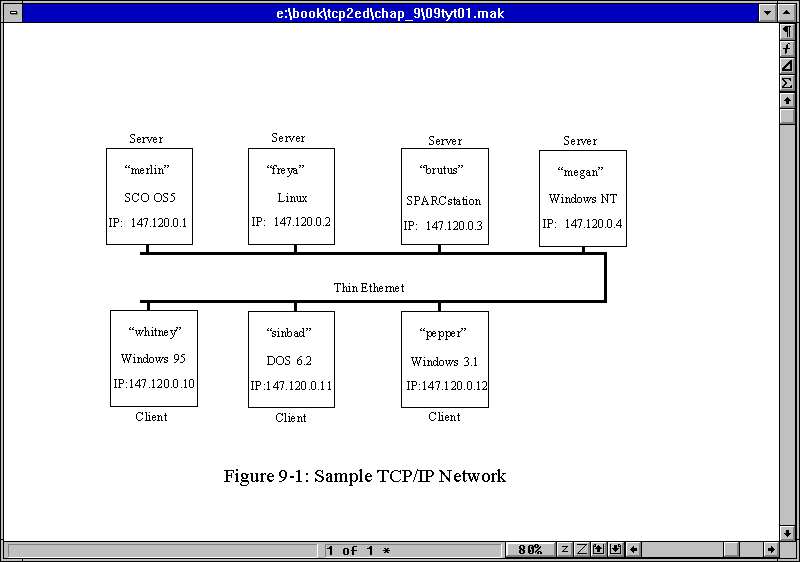
For this chapter I designed a dedicated TCP/IP network to show the steps you must follow to set up, configure, and test a TCP/IP implementation. The sample network relies on several servers, although many networks have only one. Also, I use several different types of servers to show you how they can be configured, whereas most real networks are not this diverse. All the machines are connected over an Ethernet network. In all, the sample network has four servers and three clients.
Each of the seven machines on the network has its own name and IP address. For this sample network, the IP address mask has been randomly chosen as 147.120. The names of the machines have been chosen from my pets, although any unique name would do, of course. The sample network configuration is shown in Figure 9.1. Bear in mind that this network is constructed to show the different types of operating systems I examine in today's and tomorrow's material; it is unlikely that a real network would have such an odd mix of servers and clients.
Figure 9.1. The sample TCP/IP network.
The physical setup of the network is undertaken first. It involves installing a network interface card in each machine (except the SPARCstation, which has the network card as part of the motherboard). On each system you must ensure that any jumpers for interrupt vectors and memory I/O addresses do not conflict with any other card on that system. (Some of the cards are software programmable; some are set by jumpers or DIP switches.) All the boards used in this system are from different manufacturers to show the independent nature of the TCP/IP network.
Cable must be run between all the machines, connecting the network interface cards together. In the case of Ethernet, the cables must be properly terminated. The sample network uses thin Ethernet, which closely resembles television coaxial cable. BNC Thin Ethernet connectors resemble a T, with cables attached to both ends of the T and the stem connected to the network card. Two of the machines form the ends of the cable and require a terminating resistor as part of their T. The SPARCstation normally uses an RJ45 connector (which looks like a wide telephone connector, so I used a transceiver to convert it to BNC).
To test the physical network, it is easiest to wait until a couple of machines have had their basic software configuration completed. All the machines on the network do not have to be active, as long as the network cable is contiguous from end to end and each BNC connector is attached to a network card to provide electrical termination. If problems are found when the network is tested, the physical network is the first item to check. Some network monitoring devices can supply integrity information prior to installing the network, but these devices are not usually available to system administrators who are just beginning their installation, or who have a small number of machines to maintain (primarily because the network testers tend to be expensive).
This section follows through the configuration of the TCP/IP software. The discussion applies equally to the UNIX, Windows, and DOS machines on the sample network (as it would to any other type of machine, such as a Macintosh). Filenames can change with different operating systems, but the general approach remains valid.
Most operating systems and TCP/IP software packages provide several utilities, including menu-driven scripts that help automate the installation process of the TCP/IP applications. Some operating systems (notably older UNIX systems) still require manual configuration of several files using a text editor. To configure TCP/IP software properly, you must know several pieces of information before you start. The necessary information you need for each machine on the network follows:
The system domain name is necessary if the network is to be connected to other machines outside the local network. Domain names can be invented by the system administrator. If, however, the network is to interface with Internet or one of its service providers, the domain name should be approved by the Internet Network Information Center (InterNIC). Creating and registering a new domain is as simple as filling out a form (and recently, paying a small administration fee). Domain names usually reflect the company name, with the extension identifying the type of organization. The sample network uses the name tpci.com.
As seen earlier in this book, the machine name is used for symbolic naming of a machine instead of forcing the full IP address to be specified. The system name must be unique on the local network. Other networks might have machines with the same name, but their network masks are different, so there is no possible confusion during packet routing. In most cases, system names are composed of eight characters (or less) and are usually all lowercase characters (in keeping with UNIX tradition for lowercase). The system name can be a mix of characters and numbers. Larger organizations tend to number their machines, and small companies give their machines more familiar names.
The device driver instructs the operating system how to communicate with the network interface (usually either a network card or a serial port). Each interface has its own specific device driver. Most operating systems have device drivers included in their distribution software, although some require software supplied with the network card. Generic drivers are available for most network cards on bulletin board systems.
With most operating systems, there are limits to the number of similar devices that are supported. SCO UNIX, for example, enables up to four Ethernet cards, two Token Ring adapters, four Serial Line Internet Protocol (SLIP) lines, and four Point-to-Point Protocol (PPP) lines. These limits should be enough for a machine on any network!
The network card configuration must be known in order to install the device driver properly. Network cards usually have several configuration settings, depending on the system for which they are designed. For the PC-based machines in the sample network, each card must have a unique interrupt vector (called an IRQ) and a unique I/O memory address. IRQ and address settings on many of the newer network boards are software-configurable, making the installation and configuration much easier.
Most network cards come with default settings that might conflict with other cards in the system. Users must carefully check for conflicts, resorting to a diagnostic program if available. UNIX users have several utilities available, depending on the operating system. SCO UNIX and most System V Release 4 operating systems have the utility hwconfig, which shows the current hardware configuration. The following example shows the hwconfig output and the output from the command with the -h option to provide long formatting with headers (making it is easier to read):
$ hwconfig

name=fpu vec=13 dma=- type=80387

name=serial base=0x3F8 offset=0x7 vec=4 dma=- unit=0 type=Standard nports=1

name=serial base=0x2F8 offset=0x7 vec=3 dma=- unit=1 type=Standard nports=1

name=floppy base=0x3F2 offset=0x5 vec=6 dma=2 unit=0 type=96ds15

name=floppy vec=- dma=- unit=1 type=135ds18

name=console vec=- dma=- unit=vga type=0 12 screens=68k

name=adapter base=0x2C00 offset=0xFF vec=11 dma=- type=arad ha=0 id=7 fts=st

name=nat base=0x300 offset=0x20 vec=7 dma=- type=NE2000 addr=00:00:6e:24:1e:3e

name=tape vec=- dma=- type=S ha=0 id=4 lun=0 ht=arad

name=disk vec=- dma=- type=S ha=0 id=0 lun=0 ht=arad fts=stdb

name=Sdsk vec=- dma=- cyls=1002 hds=64 secs=32

$

$ hwconfig -h

device          address    vec  dma  comment

======          =======    ===  ===  =======

fpu                -        13   -   type=80387

serial        0x3f8-0x3ff    4   -   unit=0 type=Standard nports=1

serial        0x2f8-0x2ff    3   -   unit=1 type=Standard nports=1

floppy        0x3f2-0x3f7    6   2   unit=0 type=96ds15

floppy             -         -   -   unit=1 type=135ds18

console            -         -   -   unit=vga type=0 12 screens=68k

adapter      0x2c00-0x2cff  11   -   type=arad ha=0 id=7 fts=st

nat           0x300-0x320    7   -   type=NE2000 addr=00:00:6e:24:1e:3e

tape               -         -   -   type=S ha=0 id=4 lun=0 ht=arad

disk               -         -   -   type=S ha=0 id=0 lun=0 ht=arad fts=stdb

Sdsk               -         -   -   cyls=1002 hds=64 secs=32
This output is from the SCO UNIX servers set up for the sample network. It has the network Ethernet card already configured as device nat, which uses IRQ 7 (shown under the vec or interrupt vector column). The nat line also shows the memory address as 300–320 (hexadecimal) and the device driver as NE2000 (a Novell NetWare-compatible driver). The address and vec columns show no conflicts between the settings used for the Ethernet card and other devices on the system. (The adapter entry is for a high-speed SCSI-2 card, which controls both the tape and the Sdsk device, the primary SCSI hard drive. All other entries should be self-explanatory.)
DOS users can use the Microsoft Diagnostic utility, MSD.EXE, or one of several third-party tools such as Central Point PC Tools or The Norton Utilities to display IRQ vectors and memory addresses in use by the system. Some software even indicates which vectors and addresses are available for use.
There is no need to have the same IRQ and memory address for each card on the network, because the network itself doesn't care about these settings. The IRQ and memory addresses are required for the machine to communicate with the network interface card only. The sample network used a different IRQ and memory address for each machine.
IRQ and memory addresses are usually set on the network interface card itself using either jumpers on pins or a DIP-switch block. The documentation accompanying the card should provide all the information necessary for setting these values. Some recently introduced network interface cards can be configured through software, enabling the settings to be changed without removing the card from the system. This can be very handy when a user is unsure of the best settings for the card.
The IP address is a 32-bit number that must be unique for each machine. If the network is to be connected to the Internet, the IP address must be assigned by the NIC (it is usually given to you when you register your domain name). Even if no access to the Internet is expected, arbitrarily assigning an IP address can cause problems when messages are passed with other networks. If the network is not connected to the outside world, a system administrator can ignore the NIC's numbering system and adopt any IP address. It is worthwhile, however, to consider future expansion and connection to other networks.
As you might recall, the NIC has four classes of IP addresses in use depending on the size of the network. Each class has some addresses that are restricted. These are shown in Table 9.1. Most networks are Class B, although a few large corporations require Class A networks.
|
Class |
Network Mask Bytes |
Number of Hosts per Network |
Valid Addresses |
|
A
|
1
|
16,777,216
|
1.0.0.1 to 126.255.255.254
|
|
B
|
2
|
65,534
|
128.0.0.1 to 191.255.255.254
|
|
C
|
3
|
254
|
224.0.0.0 to 255.255.255.254
|
|
D
|
reserved
|
The network mask is the IP address stripped of its network identifiers, leaving only the local machine address. For a Class A network, this strips one byte, whereas a Class B network strips two bytes (leaving two). The small Class C network strips three bytes as the network mask, leaving one byte to identify the local machine (hence the limit of 254 machines on the network). The sample network is configured as a Class B machine with the randomly chosen IP address network mask of 147.120 (not NIC-assigned).
The broadcast address identifies packets that are to be sent to all machines on the local network. Because a network card usually ignores any incoming packets that don't have its specific IP address in them, a special broadcast address can be set that the card can intercept in addition to locally destined messages. The broadcast address has the host portion (the local machine identifiers) set to either all 0s or all 1s, depending on the convention followed. For convenience, the broadcast address's network mask is usually the same as the local network mask.
Broadcast addresses might seem simple because there are only two possible settings. Such addresses, however, commonly cause problems because conflicting settings are used on a network. BSD UNIX used the convention of all 0s for releases 4.1 and 4.2, whereas 4.3BSD and SVR4 (System V Release 4) UNIX moved to all 1s for the broadcast address. The Internet standard specifies all 1s as the broadcast address. If problems are encountered on the network with broadcasts, check all the configurations to ensure they are using the same setting. The sample network uses an all 1s mask for its broadcast address.
The steps followed for configuring TCP/IP are straightforward, generally following the information required for each machine. The configuration steps are as follows:
You will use these steps (not necessarily in the sequence given) as the individual machines on the network are configured. The processes are different with each operating system, but the overall approach remains the same.
Most UNIX TCP/IP operating systems rely on several files for configuration. These are summarized in Table 9.2. Remember that filenames can change with different implementations of the UNIX operating system, but the configuration information is consistent. I look at each of these files in more detail when I look at specific operating systems later today. These files apply only to UNIX usually; Windows NT, for example, uses a different set of tables.
|
File |
Description |
|
/etc/hosts
|
Host names
|
|
/etc/networks
|
Network names
|
|
/etc/services
|
List of known services
|
|
/etc/protocols
|
Supported protocols
|
|
/etc/hosts.equiv
|
List of trusted hosts
|
|
/etc/ftpusers
|
List of unwelcome FTP users
|
|
/etc/inetd.conf
|
List of servers started by inetd |
For the sample network, modifying these files on any of the three UNIX servers (SCO UNIX, Linux, and SPARCstation) is quite easy. An ASCII text editor is all that is required. Verifying the contents is usually quite simple, too, because the tables on one machine are very similar to those on other machines, except for a few entries.
SCO UNIX and SCO OpenServer 5 include several configuration utilities to help provide information for TCP/IP and to link the driver into the kernel correctly. This does not eliminate the need to edit the many configuration files manually and supply information about the other machines on the network. Most of the information in this section, although specific to SCO UNIX, is generally applicable to most UNIX operating systems, especially SVR4-compliant versions.
Most UNIX-based networks have a main server machine that starts the network processes. This machine is sometimes called a super server, because any machine that runs network processes and accepts requests from other machines is a server. UNIX uses the process inetd (Internet daemon) as the master server for all network processes that are to be activated (usually contained in a single file called inetd.conf.) Hardware configuration requires linking information about the network card and protocol to the operating system kernel. The configuration is sometimes called a chain. The process is usually automated by a script file, requiring users to provide the interrupt vector number, the I/O memory address, and the type of card. The device driver for that network card is then rebuilt into the kernel so the driver is active whenever the system boots.
On SCO UNIX systems, a utility called netconfig is used, prompting the user for the three pieces of information (IRQ, address, and card type) and then rebuilding the kernel. Under SCO OpenServer 5, you can perform the same tasks through a GUI-driven utility that performs the same tasks. This process is repeated for each network card on the machine. (The sample network has only one card in each machine, which is the most common configuration.) When started, the SCO UNIX netconfig program presents you with this screen:
$ netconfig

Currently configured chains:

  1. nfs->sco_tcp

     nfs       SCO NFS Runtime System for SCO Unix

     sco_tcp   SCO TCP/IP for UNIX

  2. sco_tcp->lo0

     sco_tcp   SCO TCP/IP for UNIX

     lo0       SCO TCP/IP Loopback driver

Available options:

  1. Add a chain

  2. Remove a chain

  3. Reconfigure an element in a chain

  q. Quit

Select option: Please enter a value between 1 and 3 ('q' to quit):
Because a TCP/IP device driver is being added, option 1 (Add a chain) is selected. Some users confuse the first configured chain in the list with a TCP/IP driver for the network and attempt to reconfigure it. The first driver listed in the previous output is a default value for NFS and should be left alone. It has nothing to do with the addition of a TCP/IP network card. The second chain listed in the configuration is the loopback driver, which should be created automatically for all SCO systems when the operating system software is installed.
After indicating that a new chain is to be added, the system asks for the type of chain:
Num    Name       Description

  1.   lmxc       SCO LAN Manager Client

  2.   nfs        SCO NFS Runtime System for SCO UNIX

  3.   sco_ipx    SCO IPX/SPX for UNIX

  4.   sco_tcp    SCO TCP/IP for UNIX

Select top level of chain to Add or 'q' to quit:
Option 4 is chosen because you are installing TCP/IP. LAN Manager and IPX/SPX are used for integration with DOS-based networks. The NFS Runtime System is added later if NFS is to be used on the network. I look at configuring NFS in more detail on Day 12, "NFS and NIS."
The netconfig utility then presents a list of several dozen network interface cards for which the system has default values. If the card installed in the system is shown, the entry for the card is chosen. If the card is not on the list, a compatible entry must be found. This sometimes requires digging through the network interface card's documentation for emulation or compatible values, or contacting the manufacturer. Drivers are usually available for Ethernet cards.
The system then prompts for the IRQ the card is set for, followed by the memory address. After these are entered, the operating system creates the necessary entries in its internal configuration files to include the device driver for the network card. As a final step, the system asks if the user wants to rebuild and relink the kernel. This must be done if the new drivers are to be effective. After a system reboot, the drivers are active and can be tested with a ping command.
You can ping the localhost first, followed by the IP address you have assigned for the SCO machine. This does not test the network connection, because the operating system doesn't bother using the network card when pinging itself. The test does, however, verify that the IP address is set properly and that the TCP/IP software is embedded in the operating system kernel. An example of this type of ping testing looks like this:
# ping -c5 localhost

PING localhost (127.0.0.1): 56 data bytes

64 bytes from localhost (127.0.0.1): icmp_seq=0 ttl=64 time=10 ms

64 bytes from localhost (127.0.0.1): icmp_seq=1 ttl=64 time=0 ms

64 bytes from localhost (127.0.0.1): icmp_seq=2 ttl=64 time=0 ms

64 bytes from localhost (127.0.0.1): icmp_seq=3 ttl=64 time=0 ms

64 bytes from localhost (127.0.0.1): icmp_seq=4 ttl=64 time=0 ms

--- localhost ping statistics ---

5 packets transmitted, 5 packets received, 0% packet loss

round-trip min/avg/max = 0/2/10 ms

# ping -c5 147.120.0.1

PING 147.120.0.1 (147.120.0.1): 56 data bytes

64 bytes from merlin (147.120.0.1): icmp_seq=0 ttl=64 time=0 ms

64 bytes from merlin (147.120.0.1): icmp_seq=1 ttl=64 time=0 ms

64 bytes from merlin (147.120.0.1): icmp_seq=2 ttl=64 time=0 ms

64 bytes from merlin (147.120.0.1): icmp_seq=3 ttl=64 time=0 ms

64 bytes from merlin (147.120.0.1): icmp_seq=4 ttl=64 time=0 ms

--- 147.120.0.1 ping statistics ---

5 packets transmitted, 5 packets received, 0% packet loss

round-trip min/avg/max = 0/0/0 ms
In the preceding example, issued on the server merlin with IP address 147.120.0.1, I used the ping command with the -c option to specify how many packets to send. As you can see, both the localhost and IP address responded properly, indicating that the TCP/IP software is properly loaded and the IP address is recognized.
As you saw earlier today, UNIX TCP/IP networking software relies on several files for configuration. These were summarized in Table 9.2. You can look at each of these files now with respect to the SCO UNIX server on the sample network.
The /etc/hosts file contains the names of the other machines on the network and their network addresses. The file looks like this:
#      @(#)hosts    1.2 Lachman System V STREAMS TCP  source

#      SCCS IDENTIFICATION

127.0.0.1           localhost tpci

147.120.0.1         merlin merlin.tpci.com

147.120.0.2         freya freya.tpci.com

147.120.0.3         brutus brutus.tpci.com

147.120.0.4         megan megan.tpci.com_

147.120.0.10        whitney whitney.tpci.com

147.120.0.11        sinbad sinbad.tpci.com

147.120.0.12        pepper pepper.tpci.com
Each line contains the local machine name and its full name with the domain so that either version is recognized by the operating system. As new machines are added to the network, new lines are added to the file. The local machine has two entries in the file: one for the local name and one for localhost.
The /etc/networks file holds a list of network names and their addresses. This is an optional file as far as most TCP/IP installations are concerned, and most system administrators use it only when the users need it. The /etc/networks file lets you name networks in the same way as machines. The following example shows some of the SCO network machines as well as two networks that the local machines frequently connect to. Using the name maclean_net as part of a machine identifier supplied by a user is now possible because the operating system can resolve it to its IP address through this file.
#      @(#)networks 1.2 Lachman System V STREAMS TCP  source

#      SCCS IDENTIFICATION

loopback       127

sco            132.147

sco-hq         132.147.128

sco-mfg        132.147.64

sco-engr       132.147.192

sco-slip       132.147.32

sco-tcplab     132.147.160

sco-odtlab     132.147.1

maclean_net    147.50.1

bnr.ca         47
On Day 6 "Telnet and FTP," you examined the /etc/services file. It includes information about all the TCP and UDP services supported by the system. For the sample network and most small networks, the default values are acceptable. These entries are changed only if a service is being removed from TCP/IP, such as to prevent Telnet access. The file looks like this:
#      @(#)services 5.1 Lachman System V STREAMS TCP  source

#

#    System V STREAMS TCP - Release 4.0

# Network services, Internet style

#

echo            7/tcp

echo            7/udp

discard         9/tcp         sink null

discard         9/udp         sink null

systat          11/tcp        users

daytime         13/tcp

daytime         13/udp

netstat         15/tcp

qotd            17/tcp        quote

chargen         19/tcp        ttytst source

chargen         19/udp        ttytst source

ftp             21/tcp

telnet          23/tcp

smtp            25/tcp        mail

time            37/tcp        timserver

time            37/udp        timserver

rlp             39/udp        resource       # resource location

nameserver      42/tcp        name           # IEN 116

whois           43/tcp        nicname

domain          53/tcp        nameserver     # name-domain server

domain          53/udp        nameserver

mtp             57/tcp                       # deprecated

bootps          67/udp        bootps         # bootp server

bootpc          68/udp        bootpc         # bootp client

tftp            69/udp

rje             77/tcp        netrjs

finger          79/tcp

link            87/tcp        ttylink

supdup          95/tcp

hostnames       101/tcp       hostname        # usually from sri-nic

tsap            102/tcp       osi-tp0 tp0

#csnet-cs       105/?

pop             109/tcp       postoffice

sunrpc          111/tcp

sunrpc          111/udp

auth            113/tcp       authentication

sftp            115/tcp

uucp-path       117/tcp

nntp            119/tcp       readnews untp   # USENET News Transfer Protocol

ntp             123/tcp

ntp             123/udp

nb-ns           137/udp         nbns netbios-nameservice

nb-ns           137/tcp         nbns netbios-nameservice

nb-dgm          138/udp         nbdgm netbios-datagram

nb-dgm          138/tcp         nbdgm netbios-datagram

nb-ssn          139/tcp         nbssn netbios-session

snmp            161/udp

snmp-trap       162/udp

bgp             179/tcp

#

# UNIX specific services

#

exec            512/tcp

biff            512/udp         comsat

login           513/tcp

who             513/udp         whod

shell           514/tcp         cmd             # no passwords used

syslog          514/udp

printer         515/tcp         spooler         # line printer spooler

talk            517/udp

ntalk           518/udp

efs             520/tcp                         # for LucasFilm

route           520/udp         router routed   # 521 also

timed           525/udp         timeserver

tempo           526/tcp         newdate

courier         530/tcp         rpc

conference      531/tcp         chat

netnews         532/tcp         readnews

netwall         533/udp                         # -for emergency broadcasts

uucp            540/tcp         uucpd           # uucp daemon

remotefs        556/tcp         rfs_server rfs  # Brunhoff remote filesystem

pppmsg          911/tcp                         # PPP daemon

listen         1025/tcp         listener RFS remote_file_sharing

nterm          1026/tcp         remote_login network_terminal

ingreslock     1524/tcp
The /etc/hosts.equiv file controls access from other machines. The /etc/ftpusers file prevents unauthorized logins with specific user names. Both files are examined in more detail in the sections later today titled "User Equivalence" and "Anonymous FTP."
The /etc/inetd.conf file, mentioned earlier, controls the processes started by the inetd daemon when the system boots. The default inetd.conf file is fine for the sample system and seldom requires modification. The file appears as follows:
#      @(#)inetd.conf    5.2 Lachman System V STREAMS TCP  source

#

#    System V STREAMS TCP - Release 4.0

#

#      SCCS IDENTIFICATION

ftp       stream    tcp  nowait    NOLUID    /etc/ftpd      ftpd

telnet    stream    tcp  nowait    NOLUID    /etc/telnetd   telnetd

shell     stream    tcp  nowait    NOLUID    /etc/rshd      rshd

login     stream    tcp  nowait    NOLUID    /etc/rlogind   rlogind

exec      stream    tcp  nowait    NOLUID    /etc/rexecd    rexecd

finger    stream    tcp  nowait    nouser    /etc/fingerd   fingerd

#uucp     stream    tcp  nowait    NOLUID    /etc/uucpd     uucpd

# Enabling this allows public read files to be accessed via TFTP.

#tftp     dgram     udp  wait      nouser    /etc/tftpd     tftpd

comsat    dgram     udp  wait      root      /etc/comsat    comsat

ntalk     dgram     udp  wait      root      /etc/talkd     talkd

#bootps   dgram     udp  wait      root      /etc/bootpd    bootpd

echo      stream    tcp  nowait    root      internal

discard   stream    tcp  nowait    root      internal

chargen   stream    tcp  nowait    root      internal

daytime   stream    tcp  nowait    root      internal

time      stream    tcp  nowait    root      internal

echo      dgram     udp  wait      root      internal

discard   dgram     udp  wait      root      internal

chargen   dgram     udp  wait      root      internal

daytime   dgram     udp  wait      root      internal

time      dgram     udp  wait      root      internal

smtp      stream    tcp  nowait    mmdf      /usr/mmdf/chans/smtpd smtpd /usr/mmdf/chans/smtpsrvr smtp
With the files set up as shown and the daemons properly loading, TCP/IP and UDP should both be active and available. Most operating systems require a reboot after any changes to the kernel or some configuration files, so modifications to the TCP/IP files should be followed by system resets.
When the system boots, the TCP/IP daemons should be listed in the startup messages shown on the console. Any errors in the daemon startups are shown on the display or mailed to the system administrator. Usually, these error messages are cryptic but at least indicate the presence of a problem (which is better than you worrying about configuration information when the daemon is at fault).
Linux is a public domain UNIX version that has become very popular. In this section I configure the SlakWare release of Linux on the sample network. Many other Linux versions use the same TCP/IP configuration process as SlakWare, but you should check your version's release notes for any changes. Linux is a combination of BSD UNIX and SVR4 UNIX, but most of the configuration files for TCP/IP are identical to those for SCO UNIX and Solaris 2.4. Before you start configuring the TCP/IP files, though, you need to check a few details on your Linux system.
Most networked versions of Linux rely on the /proc filesystem, which must be created and mounted before networking can be configured and tested. Most Linux versions automatically create the /proc filesystem when the operating system is installed, so you shouldn't have to do anything more than make sure it is properly mounted by the kernel. The /proc filesystem is essentially a quick interface point for the kernel to obtain network information, as well maintaining important tables that are usually kept in the subdirectory /proc/net, which is created by the network installation routine.
If the /proc filesystem is not created by your Linux kernel, you have to rebuild the kernel and select the /proc option. Change to the source directory (such as /usr/src/Linux) and run the configuration routine with this command:
make config
When you are asked if you want the procfs support, answer yes. If you do not get asked about the /proc filesystem support, and the /proc directory is not created on your filesystem, you need to upgrade your kernel to support networking.
You can make sure the /proc filesystem is mounted automatically on your Linux system by examining the startup code for the kernel. To force the /proc filesystem to be mounted automatically, modify the /etc/fstab file and add the mount command there. Check the entries in /etc/fstab to see if there is a line like this:
none /proc proc defaults
If no such line exists, you should add it to the contents of the /etc/fstab file using an ASCII editor.
Another step you must take before configuring TCP/IP under Linux is to set the hostname. To set the hostname, use this command:
hostname name
The name is the system name you want for your local machine. If a hostname is not already set, you can set the full domain name using this command:
hostname freya.tpci.com
This sets the hostname to freya on the sample network. When you set the local machine's name with the hostname command, an entry is usually made in the /etc/hosts file. You should verify that your machine name appears in that file.
The next step in configuring TCP/IP on your Linux machine is to make the network interface accessible. This is done with the ifconfig command. When run, ifconfig essentially makes the network layer of the kernel work with the network interface by giving it an IP address. When the interface is active, the kernel can send and receive data through the interface.
There are several interfaces you need to set up for your Linux machine, including the loopback driver (if it is not already created) and the Ethernet interface. The ifconfig command is used for each interface in turn. The general format of the ifconfig command is this:
ifconfig interface_type IP_Address
The interface_type is the interface's device driver name (such as lo for loopback and eth for Ethernet). The IP_Address is the IP address used by that interface.
When the ifconfig command has been run and the interface is active, you can use the route command to add or remove routes in the kernel's routing table. This is needed to enable the local machine to find other machines. The general format of the route command is this:
route add|del IP_Address
Either add or del is specified to add or remove the route from the kernel's routing table, and IP_Address is the remote route being affected.
You can display the current contents of the kernel's routing table at any time by entering the command route all by itself on the command line. For example, if your system is set up with only the loopback driver, you see an output like this:
$ route

Kernel Routing Table

Destination    Gateway   Genmask   Flags  MSS  Window  Use Iface

loopback         *       255.0.0.0   U    1936  0       16  lo
The important columns are the destination name, which shows the name of the configured target (in this case, loopback), the mask to be used (Genmask), and the interface (Iface, in this case /dev/lo). You can force route to display IP addresses instead of symbolic names by using the -n option:
$ route -n

Kernel Routing Table

Destination    Gateway   Genmask   Flags  MSS  Window  Use Iface

127.0.0.1         *      255.0.0.0   U    1936  0       16  lo
A typical Linux network configuration includes a couple of interfaces. The loopback interface should exist on every machine. Once the loopback driver is configured, you can add the Ethernet driver for the network. You begin by installing the loopback driver.
The loopback interface should exist on every machine. The loopback interface always has the IP address 127.0.0.1, so the /etc/hosts file should have an entry for this interface. The loopback driver might have been created by the kernel during software installation, so check the /etc/hosts file for a line similar to this:
localhost 127.0.0.1
If the line exists, the loopback driver is in place. Make sure the line doesn't have a pound sign ahead of it, which would comment it out. You can also use the ifconfig utility to display all the information it knows about the loopback driver. Use this command:
ifconfig lo
You should see several lines of information about the loopback driver. If you get an error message, the loopback driver does not exist.
If the loopback interface is not in the /etc/hosts file, you need to create it with the ifconfig command. The command
ifconfig lo 127.0.0.1
creates the necessary line in /etc/hosts.
Next you should add the loopback driver to the kernel routing tables with one of these two commands:
route add 127.0.0.1
or
route add localhost
It doesn't matter which command you use because they both refer to the same thing. The command essentially tells the kernel that it can use the route to address 127.0.0.1 or to the name localhost.
As a quick check that all is correct with the loopback driver, you can use the ping command to check the routing. If you issue either of these two commands:
ping localhost
or
ping 127.0.0.1
you should see output like this:
PING localhost: 56 data bytes

64 bytes from 127.0.0.1: icmp_seq=0.  ttl=255 time=1 ms

64 bytes from 127.0.0.1: icmp_seq=1.  ttl=255 time=1 ms

64 bytes from 127.0.0.1: icmp_seq=2.  ttl=255 time=1 ms

64 bytes from 127.0.0.1: icmp_seq=3.  ttl=255 time=1 ms

64 bytes from 127.0.0.1: icmp_seq=4.  ttl=255 time=1 ms

64 bytes from 127.0.0.1: icmp_seq=5.  ttl=255 time=1 ms

64 bytes from 127.0.0.1: icmp_seq=6.  ttl=255 time=1 ms

64 bytes from 127.0.0.1: icmp_seq=7.  ttl=255 time=1 ms

^C

--- localhost PING Statistics ---

7 packets transmitted, 7 packets received, 0% packet loss

round-trip (ms) min/avg/max = 1/1/1
The ping command's progress was interrupted by the user by issuing a Ctrl+C after seven transmissions. You can let as many transmissions as you want go by. If you get no replies from the ping command, then the address 127.0.0.1 or the name localhost wasn't recognized and you should check the configuration files and route entry again.
If the configuration files look correct and the route command was accepted properly, but the ping command still doesn't produce the proper results, you have a more serious problem. In some cases, the network kernel is not properly configured and the entire process must be conducted again. Sometimes a mismatch in versions of kernel drivers and network utilities can cause hang-ups with the ping routine, as well.
Next, you need to add the Ethernet drivers to the kernel. You can perform the same configuration process with the Ethernet driver. To begin, you set up the Ethernet interface using ifconfig. To make the interface active, use the ifconfig command with the Ethernet device name and your local IP address. For example, use the command
ifconfig eth0 147.120.0.2
to set up the local machine with the IP address 147.120.0.2. The interface is to the Ethernet device /dev/eth0. You don't have to specify the network mask with the ifconfig command because it deduces the proper value from the IP address entered. If you want to provide the network mask value explicitly, append it to the command line with the keyword netmask:
ifconfig eth0 147.120.0.2 netmask 255.255.255.0
You can then check the interface with the ifconfig command using the interface name:
$ ifconfig eth0

eth0         Link encap 10Mps: Ethernet Hwaddr

          inet addr 147.123.20.1 Bcast 147.123.1.255 Mask 255.255.255.0

          UP BROADCAST RUNNING  MTU 1500 Metric 1

          X packets:0 errors:0 dropped:0 overruns:0

          TX packets:0 errors:0 dropped:0 overruns:0
You might have noticed in the output from the command that the broadcast address was set based on the local machine's IP address. This is used by TCP/IP to access all machines on the local area network at once. The Message Transfer Unit (MTU) size is usually set to the maximum value of 1500 supported by Ethernet networks.
Next, you need to add an entry to the kernel routing tables that lets the kernel know about the local machine's network address. That lets it send data to other machines on the same network. The IP address that is used with the route command to do this is not your local machine's IP address, but that of the network as a whole without the local identifier. To set the entire local area network at once, the -net option of the route command is used. In the case of the IP addresses shown previously, the command would be as follows:
route add -net 147.120.0
This adds all the machines on the network identified by the network address 147.120.0 to the kernel's list of accessible machines. If you didn't do it this way, you would have to manually enter the IP address of each machine on the network. An alternative method is to use the /etc/networks file, which can contain a list of network names and their IP addresses. If you have an entry in the /etc/networks file for a network called maclean_net, you could add the entire network to the routing table with this command:
route add maclean_net
Once the route has been added to the kernel routing tables, you can try the Ethernet interface out by pinging another machine, such as the SCO server you configured earlier.
Now you can configure the files used by TCP/IP, as you did for the SCO UNIX system configured earlier. Because many of the details of these files are identical to those shown in the SCO UNIX section, I skip a lot of the details here.
The /etc/hosts file is used to hold the network addresses and symbolic names, as well as the loopback driver. The loopback connection address is usually listed as the machine name loopback or localhost. The /etc/hosts file consists of the network address in one column and the symbolic name in another. Although the network addresses can be specified in decimal, octal, or hexadecimal format, decimal is the most commonly used form (and use of the others can be downright confusing). You can specify more than one symbolic name on a line by separating the names with white space characters (spaces or tabs). The Linux server /etc/hosts file on the sample network looks like this (remember that the Linux server is called freya and has an IP address of 147.120.0.2):
# network host addresses

127.0.0.1           localhost tpci

147.120.0.2         freya freya.tpci.com

147.120.0.1         merlin merlin.tpci.com

147.120.0.3         brutus brutus.tpci.com

147.120.0.4         megan megan.tpci.com_

147.120.0.10        whitney whitney.tpci.com

147.120.0.11        sinbad sinbad.tpci.com

147.120.0.12        pepper pepper.tpci.com
This file is essentially identical to that of the SCO UNIX server, because all the machines on the network have the same names and addresses. Because the localhost name is set to freya, the Linux server knows which entry in the file refers to itself.
The file /etc/protocols identifies all the transport protocols available on the Linux server and gives their respective protocol numbers. All systems have this file, although some entries might be commented out to prevent unwanted intrusion or abuse. With Linux the /etc/protocols file is not usually modified by the administrator. Instead, the file is maintained by the networking software and updated automatically as part of installation procedures. The file contains the protocol name, its number, and any alias that can be used for that protocol. The /etc/protocols file from the Linux server is shown here:
# protocols

ip       0    IP   # internet protocol, pseudo protocol number

icmp     1    ICMP # internet control message protocol

igmp     2    IGMP # internet group multicast protocol

ggp      3    GGP  # gateway-gateway protocol

tcp      6    TCP  # transmission control protocol

pup     12    PUP  # PARC universal packet protocol

udp     17    UDP  # user datagram protocol

idp     22    IDP  # WhatsThis?

raw    255    RAW  # RAW IP interface
The exact contents of the /etc/protocols file on your system might differ a little from the file shown here, but the protocol numbers and names are probably the same. There might be additional protocols listed, depending on your version of Linux and networking software.
The last TCP/IP configuration file used on most Linux systems identifies existing network services. This is /etc/services. As with the /etc/protocols file, this file is not usually modified by an administrator but is maintained by software when installed or configured. The /etc/services file is in ASCII format and consists of the service name, a port number, and the protocol type. The port number and protocol type are separated by a slash. Any optional service alias names follow. A short extract from a sample /etc/services file (the file is usually quite lengthy) is shown next:
# network services

echo     7/tcp

echo     7/udp

discard  9/tcp   sink  null

discard  9/udp   sink  null

ftp      21/tcp

telnet   23/tcp

smtp     25/tcp   mail mailx

tftp     69/udp

# specific services

login    513/tcp

who      513/udp   whod
Most /etc/services files have many more lines, because a wide number of TCP/IP services are supported by most versions of Linux. Because you never have to worry about the contents of this file, you don't need to check each entry.
SunSoft Solaris 2.4 is a System V Release 4 version of UNIX, so it is configured very much like the SCO UNIX system configured earlier. The Ethernet interface and drivers are linked into the kernel when the operating system is loaded, so none of the device configuration should have to be modified. When the Solaris operating system is loaded, part of the configuration procedure asks for the name of the server and its IP address (in the sample network the name is brutus and the IP address is 147.120.0.3).
These settings are then placed in the /etc/hosts file. You can use any ASCII editor to enter the rest of the machines on the sample network to complete the /etc/hosts file, as shown here:
#

# Internet Host Table

#

127.0.0.1           localhost

147.120.0.3         brutus brutus.tpci.com loghost

147.120.0.1         merlin merlin.tpci.com

147.120.0.2         freya freya.tpci.com

147.120.0.4         megan megan.tpci.com_

147.120.0.10        whitney whitney.tpci.com

147.120.0.11        sinbad sinbad.tpci.com

147.120.0.12        pepper pepper.tpci.com
The /etc/networks file on the SPARCstation server is similar to that on the SCO UNIX machine:
loopback       127

sco            132.147

sco-hq         132.147.128

sco-mfg        132.147.64

sco-engr       132.147.192

sco-slip       132.147.32

sco-tcplab     132.147.160

sco-odtlab     132.147.1

maclean_net    147.50.1

bnr.ca         47
In some cases, additional entries might exist for backward-compatibility reasons. You can add as many entries as you want to the /etc/networks file.
As with Linux, the /etc/services and /etc/protocols files are left alone, because they are supplied with all the configuration details already entered. These files can be modified if you need to disable a particular service (for security reasons, for example), but in most cases they are best left unmodified.
The SPARCstation was supplied with an RJ45 connector to the Ethernet network, so I used a transceiver to convert from RJ45 to a BNC connector. Passing through the transceiver converts the Ethernet connection to the mode you need. I could have wired the entire network with RJ45 connectors, but I would then need a hub to connect all the RJ45 connectors to (as I discussed on Day 1, "Open Systems, Standards, and Protocols").
After the SPARCstation is connected to the network, you can try pinging a remote machine. If you get a proper response, all is well and you can move on to configuring other machines. If there is a problem with ping, you have to verify that all the files are correct, that the IP address is valid, and that the network transceiver is functioning properly.
Windows NT is available in both server and workstation versions. Today I configure the server version for the sample network. I use Windows NT Server 3.51 on the sample system although Windows NT 4.0 performs in almost exactly the same way. (Windows NT 4.0 was still in beta as this book was being written; the only changes noticeable were because of the GUI modifications to resemble the Windows 95 GUI.) Although TCP/IP is provided with Windows NT, it is not installed as the default network protocol. Instead, IPX/SPX and NetBEUI are installed as default protocols. To configure TCP/IP, you need to extract the TCP/IP software from the distribution media if it hasn't already been installed.
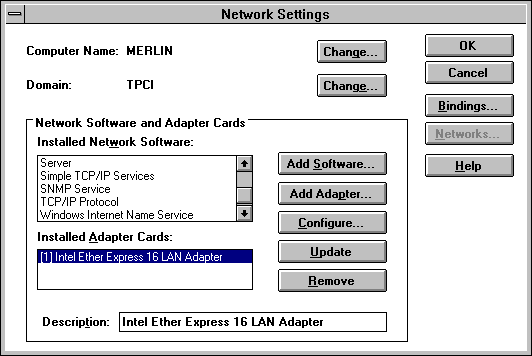
You can check for the presence of the TCP/IP software by opening the Network Settings window inside the Control Panel. This window is shown in Figure 9.2. The scroll list in the bottom left corner has a list of all installed components. If it does not include an entry such as TCP/IP Protocol, the TCP/IP software is not installed. To install the TCP/IP software, click the Add Software button on the Network Settings window.
Figure 9.2. The Windows NT Network Settings screen shows all the components that are installed.
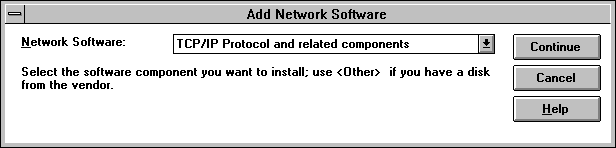
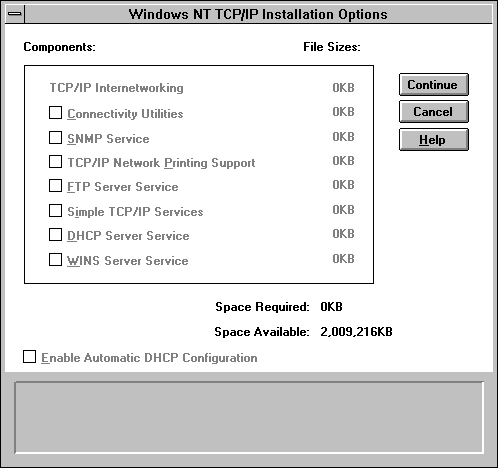
When you select Add Software, the system checks for all the installed and available components (which can take some time), then displays the windows shown in Figure 9.3. After selecting TCP/IP to be installed, you can select the specific TCP/IP components and any other TCP/IP services you want to install from the window shown in Figure 9.4.
Figure 9.3. You can add the TCP/IP software to your Windows NT system through this window.
Figure 9.4. Select the components of the Windows NT TCP/IP software that you want to install from this window.
The server version of Windows NT offers several TCP/IP configuration options and extra services. Those shown in Figure 9.4 include the following:
Clicking the OK button begins the installation process, with Windows NT prompting you for the distribution CD-ROM or disks as needed. After the TCP/IP software is installed, you have to reboot the machine and then the Network Settings window should show the TCP/IP protocols in place.
If you installed a network adapter when the Windows NT operating system software was loaded, the network adapter card should also show in the list of installed components in the Network Settings window. If you need to add a network adapter card to the system, it can be added through the Network Settings window, too. The Add Adapter button starts the installation routine, which prompts for the type of network adapter card, then the settings on the card for IRQ and memory address. After the network card has been configured, the drivers are loaded by Windows NT, then a system reboot makes the card available.
The Network Settings window lets you configure each component of the TCP/IP software installed on the Windows NT server. You can change the machine name and domain name from the Network Settings window by clicking the Change button next to those items at the top of the screen. Only an administrator can change the machine and domain names.
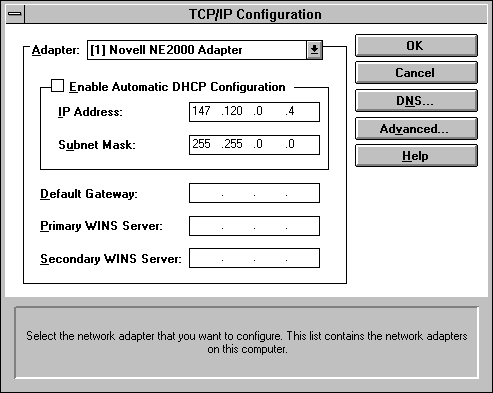
If you highlight TCP/IP Protocol in the Network Settings window, then click the Configure button, you see the TCP/IP Configuration window shown in Figure 9.5. This lets you provide the IP address of the local machine (assuming it is not assigned through the use of another service like DHCP or WINS). If you are using a DHCP or WINS server (other than the machine you are configuring now), the IP address of that server should be entered on this screen.
Figure 9.5. The IP address of the local machine is entered in this window.
If you are using DNS on your network, select the DNS button in the TCP/IP Configuration window. This displays the DNS Configuration window. This window lets you specify the hostname and domain name of the DNS server as well as any specifics about the DNS server search order. If you are not using DNS, you can leave this window as it is. Because you are not setting up a DNS server at the moment, you can leave this window alone. Finally, the Advanced button on the TCP/IP Configuration window lets you select subnet masks and gateway IP addresses, if necessary.
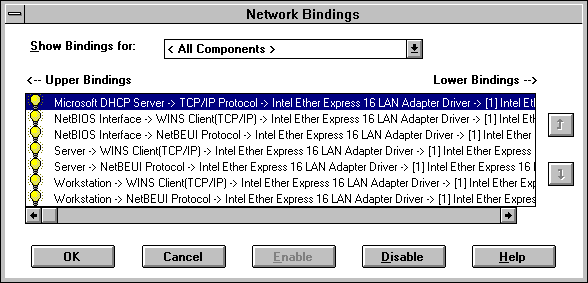
From the Network Settings window, you should check the network bindings to make sure TCP/IP is used for communications over the local area network. Select the Bindings button on the Network Settings window to display the Network Bindings window, shown in Figure 9.6.
Figure 9.6. The Network Bindings window shows all network bindings configured on the system.
If TCP/IP is properly configured, you see the TCP/IP protocol bound to the network adapter card. The binding should be enabled, as shown by a yellow lightbulb to the left of the binding name. If it is not enabled, click the Enable button at the bottom of the window. If other protocols, such as IPX/SPX, are bound to the same network card and enabled but not needed, you should disable them. Only leave the bindings that you need enabled.
After the configuration information has been verified, you should click Update or OK and allow Windows NT to complete the configuration for you. You might have to provide the source disks or CD-ROM if new software is necessary. After the configuration is complete, you need to reboot the machine to effect any changes.
To verify that the configuration is working properly, you should run the ping command and try pinging another machine on the network. The ping utility is DOS-based and can usually be found under WINNT35\SYSTEM32. Start a DOS session and issue the ping command, followed by a known IP address. If the remote is successfully pinged, your installation and configuration are working.
Testing the TCP/IP configuration on any of the four configured servers is straightforward. Begin by using ping on each machine to ensure that the software is talking to the network hardware. Unfortunately, a successful ping of the local machine does not always mean the network is being accessed properly; it simply means the network software is processing the request. To test the network interface itself, ping the other machines on the network. In the following example, merlin is the local host and sinbad is a DOS machine running ftp Software's PC/TCP (which you see tomorrow):
$ ping merlin

PING localhost (147.120.0.1): 56 data bytes

64 bytes from localhost (147.120.0.1): icmp_seq=0 ttl=255 time=0 ms

64 bytes from localhost (147.120.0.1): icmp_seq=1 ttl=255 time=0 ms

64 bytes from localhost (147.120.0.1): icmp_seq=2 ttl=255 time=0 ms

64 bytes from localhost (147.120.0.1): icmp_seq=3 ttl=255 time=0 ms

64 bytes from localhost (147.120.0.1): icmp_seq=4 ttl=255 time=0 ms

--- localhost ping statistics ---

5 packets transmitted, 5 packets received, 0% packet loss

round-trip min/avg/max = 0/0/0 ms

$ ping sinbad

PING sinbad (147.120.0.11): 56 data bytes

64 bytes from localhost (147.120.0.1): icmp_seq=0 ttl=255 time=20 ms

64 bytes from localhost (147.120.0.1): icmp_seq=1 ttl=255 time=20 ms

64 bytes from localhost (147.120.0.1): icmp_seq=2 ttl=255 time=50 ms

64 bytes from localhost (147.120.0.1): icmp_seq=3 ttl=255 time=30 ms

64 bytes from localhost (147.120.0.1): icmp_seq=4 ttl=255 time=40 ms

--- pepper ping statistics ---

5 packets transmitted, 5 packets received, 0% packet loss

round-trip min/avg/max = 20/32/50 ms
The first test shows that the software is configured properly. The command to ping merlin resulted in a conversion within the /etc/hosts file to recognize the instruction as the localhost entry. After verifying the local connection, the remote machine is tried. The successful round-trip of the packets indicates that the remote is working properly, and that the network is functional. Of course, this works only if the remote machine has been loaded with TCP/IP software and is active.
If the localhost ping command failed, the software was probably configured incorrectly, or the hardware was not accessed properly. First, check the connectors on the network cards, because they have an annoying habit of working loose. Next, check the network configuration (IRQ, address, and type of adapter), followed by the configuration files, as shown earlier. If everything looks correct and the remote machine answers its own ping command properly, there is a problem with software compatibility.
The netstat network status command is useful for monitoring the network's performance and detecting problems. TCP/IP system administrators frequently use the options -i, -m, and -s. See Day 13, "Managing and Troubleshooting TCP/IP," for more troubleshooting information.
A common problem is the lack of enough STREAMS buffers, which causes a process to hang or a connection to terminate for no apparent reason. The size of the STREAMS buffer and its current status can be checked with the command netstat -m:
$ netstat -m

streams allocation:

                     config   alloc    free   total     max    fail

streams                 292      78     214     145      79       0

queues                 1424     360    1064     327     364       0

mblks                  5077     197    4880    3189     206       0

dblks                  4062     197    3865    3167     205       0

class 0,    4 bytes     652      51     601     357      53       0

class 1,   16 bytes     652       1     651     284       3       0

class 2,   64 bytes     768       8     760    2158      15       0

class 3,  128 bytes     872     104     768     237     106       0

class 4,  256 bytes     548      21     527      90      22       0

class 5,  512 bytes     324      12     312      13      13       0

class 6, 1024 bytes     107       0     107       1       1       0

class 7, 2048 bytes      98       0      98       1       1       0

class 8, 4096 bytes      41       0      41      26       1       0

total configured streams memory: 1183.09KB

streams memory in use: 44.66KB

maximum streams memory used: 58.28KB_
The number in the fail column should be 0 in each row; otherwise, there is a problem with the amount of buffer allocated. To change the number of STREAMS buffers allocated, kernel variables must be changed and the kernel relinked. As a general rule, if there are problems with the existing STREAMS buffer sizes, increase the number by 50 percent. If that doesn't solve the problem, increase by another 50 percent.
To fully test the TCP/IP system, use Telnet or FTP to log in and transfer files from machine to machine. Because these two utilities are the most common users of TCP/IP (unless NIS or NFS are active), they help show any problems with the port assignments, services provided, or name mapping.
Most UNIX systems support pseudo ttys (false terminals) to enable external machines to use Telnet and rlogin for access to the local machine. Without a pseudo tty, the remote machine cannot establish a session.
The SCO UNIX system, for example, configures 32 pseudo ttys by default, which should be plenty for small and moderate sized networks. (Remember that 32 pseudo ttys enable 32 sessions from remote users.) Adding or deleting pseudo ttys can be done through a configuration utility or, in the case of SCO UNIX, with the mkdev ptty command. There is no useful advantage gained by drastically reducing the number of pseudo ttys on small networks. Pseudo ttys should be reconfigured after TCP/IP has been installed and is working correctly.
User equivalence lets a user rlogin to another machine with the same account information, without entering a password. This is helpful when a user must log into another machine frequently, avoiding the login process for speed and reducing the number of processes running on the remote.
To permit user equivalence, UNIX requires that the user exists on both machines and that entries in two configuration files match. The /etc/passwd file, which controls overall access to the machine, must have an entry for the user's login name on both machines. One of two configuration files also must have information about the user.
If the file .rhosts is used, user equivalence is established only for accounts specifically named in the file. The .rhosts file usually resides in the root directory and has one entry per line, specifying the remote machine name and the user ID. An .rhosts file looks like this:
# .rhosts file for brutus.com

merlin tparker

merlin ychow

merlin bsmallwood

pepper etreijs

pepper tparker

freya rmaclean
With this configuration, the user tparker, on remote machine merlin, could log in to the local machine as tparker only. A user can allow access to an account by another by creating a .rhosts file in his or her home directory.
If the file hosts.equiv is used (which usually resides in the /etc directory), user equivalence is valid for any account on both machines except root. If the file hosts.equiv contained only a machine name, any valid user on that machine would be allowed user equivalence (except root). The machine is called a trusted host.
Unfortunately, this type of access poses considerable security problems, so it should be used only under stringently controlled or very reliable conditions. A major problem is that a user can log in as any other valid user on the remote system without using a password. A sample hosts.equiv file looks like this:
# hosts.equiv for brutus.com

merlin tparker

pepper

freya rmaclean
In this example, any user on the remote system (pepper) could log in as any valid user (except root) on the local machine, without using a password. Only the user tparker, on the remote machine merlin, could log in as any valid system user (except root) on the local machine. The potential for misuse of user equivalence with this type of access is high, although it can be handy for access to specific utilities or applications.
If both .rhosts and hosts.equiv exist with entries for the same machine and user ID, the entry from the hosts.equiv file is used for determining the user's equivalence. Remember that for both .rhosts and hosts.equiv, matching user entries must exist in the /etc/passwd file.
User equivalence configuration can cause problems for system administrators that are frequently blamed on the network software. Also, some users might want to allow specific entries by a user on a remote system without having the system administrator grant open privileges.
To illustrate the entries more clearly, a concrete example might help. Assume user ychow, on the machine pepper, wants to access machine merlin as both ychow and shortie without using passwords. (In other words, ychow on pepper is equivalent to ychow and shortie on merlin.) There are several methods of configuring the system to allow this. The system administrator can create an .rhosts file in the root directory that has the following entries:
pepper ychow

pepper shortie
This allows only ychow (on pepper) to log in as ychow, with no access as shortie unless shortie is logged in to pepper, too. This isn't what is required. An entry in the hosts.equiv file like this
pepper ychow
doesn't solve the problem either because ychow can now log in as any valid user on merlin. Solving this requires each user that wants to allow ychow to access their directories to place an .rhosts file in their home directories. On the sample network, both ychow's and shortie's home directories on merlin would have the same entries.
User ychow can now log in to merlin using one of the following commands:
rlogin merlin
or
rlogin merlin -l shortie
The latter command logs ychow in as the user equivalent shortie. The first retains the same login ID. Note that the .rhosts file resides in the home directories of the users who want to allow remote user access.
Anonymous FTP enables users from other locations to access a system without logging on. They obtain the FTP prompt as usual but enter anonymous as the user name. In most systems, a password can be anything, although convention dictates that the user's login name be supplied for tracking purposes. There is no check of the names, however. Once logged in to anonymous FTP, users can browse through public directories and retrieve files that reside there. Anonymous FTP is excellent for distributing information to the general public, but its open access has accompanying security concerns.
When a user logs in to the anonymous FTP account, UNIX invokes a process called chroot, which restricts the user from moving out of the home directory. The dependence on chroot requires that some system configuration files (including a copy of the /etc/passwd and /etc/group files) reside in the anonymous FTP directories.
Configuring a UNIX system for anonymous FTP involves establishing a public directory system and changing file permissions to prevent unwanted access to other parts of the file system. Also, an anonymous account is created using the user name ftp. Anonymous FTP usually uses the user ftp's home directory created when the user is generated.
To set up anonymous FTP access, create a user called ftp. With UNIX systems, this is usually performed with a script called mkuser or a system utility. Alternatively, the user can be added to the /etc/passwd file. A group called ftp should exist or be created. Once the home directory for the user ftp exists, change its user and group identities to ftp (using the chown and chgrp commands).
Assuming the user ID ftp has been created and the home directory is /usr/ftp, the steps to follow are shown here. (Comments shown after the pound sign are for description purposes only and need not be entered.)
$ cd /usr/ftp   # change to the home directory

$ chmod 555 .   # set file permissions to r-x

$ chown ftp .   # change the owner to ftp

$ chgrp ftp .   # change the group to ftp

$ mkdir pub     # create public directory (see below)

$ chmod 777 pub # set pub dir permissions as rwx

$ mkdir bin     # create bin dir for executables

$ cd bin

$ chmod 555 bin # set bin dir to r-x

$ cp /bin/sh /bin/ls .

$ cd ..

$ mkdir etc     # create etc dir for passwd file

$ chmod 555 etc # set etc dir to r-x

$ cd etc

$ cp /etc/passwd /etc/group .

$ chmod 444 passwd group

$ cd ..
If you want to create subdirectories beneath the home directory for the anonymous user to access, ensure that they have the correct ownerships, as well. It is common practice to create a directory called ftp/pub for uploading files to the system. Set file permissions so that the user cannot exit the home directory structure. In the previous example, all the directories except pub are set to read and execute only. The example copied the shell and listing utilities into the FTP directory structure so the anonymous user can access them. Other utilities can be copied if desired.
The /etc/passwd and /etc/group files must be copied into a directory called etc (below the ftp user's home directory) to enable chroot to function properly. It is strongly recommended that these files be edited to remove any other user information; it is conceivable that an anonymous user could access and analyze the files for information about the local system, leading to an unwelcome break-in. Remove all users from the /etc/passwd file except for root, daemon, uucp, and the ftp entries. Similarly, prune the /etc/group file to remove all but these entries.
To help prevent unwanted access, the file etc/ftpusers can be created to contain user names that result in immediate disconnection. This file should have entries for root and uucp as a minimum.
Windows NT Server enables anonymous FTP through a different mechanism (because it isn't UNIX). To enable anonymous FTP on the Windows NT server on the sample network, you have to enable the FTP server. The software for the server should be installed as shown earlier. During the installation you will probably receive a warning about the insecurity of using FTP to transfer passwords over your network. However, unless you can install an authentication scheme for your passwords, this is a necessary evil to enable FTP access to the Windows NT machine.
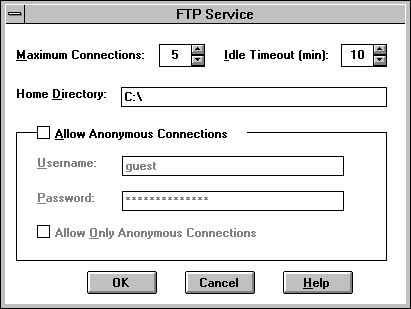
To configure the FTP server software, you select the FTP server item from the Network Settings window shown in Figure 9.2, then click the Configure button. This displays the FTP Service window shown in Figure 9.7. You can adjust the number of sessions allowed as well as the time-out interval using the options at the top of this window.
Figure 9.7. Use this window to alter the behavior of the FTP server.
You might notice that the bottom part of the screen lets you set the FTP server to enable anonymous connections. You can set the anonymous login and password if you want. This enables users who are not on the authorized Windows NT Users' list to transfer files from the Windows NT machine. It is a good idea to restrict access to a subdirectory where there are no sensitive files available.
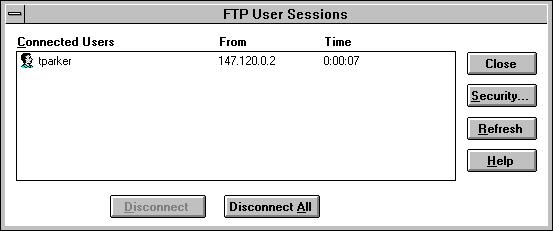
You can monitor the behavior of the FTP server system through the FTP Server icon on the Control Panel. This displays a window like the one shown in Figure 9.8, which lists all active users. The Disconnect and Disconnect All buttons at the bottom of the window can be used to force users off the Windows NT machine.
Figure 9.8. The FTP Server window shows users who are currently using FTP.
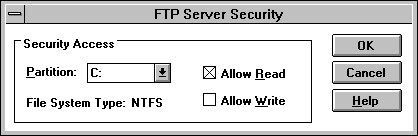
Some security settings can be controlled through the FTP Server window by clicking the Security button. This displays the window shown in Figure 9.9. The Read and Write options enable you to control access to entire drives (all floppy and hard drives, as well as any mounted drives such as CD-ROMs and optical or removable media).
Figure 9.9. The FTP Server Security window lets you set broad access rights to drives.
Serial Line Internet Protocol (SLIP) and Point-to-Point Protocol (PPP) operate over serial lines and require some additional information. Because SLIP and PPP connections are between two machines, the source and destination IP addresses are needed. Also, the serial port identifier is needed, including the interrupt vector it uses. Serial lines must be properly configured with their baud rate. This is usually set within another file on the system. SLIP connections also require a netmask setting, although this is not needed for PPP.
PPP is more versatile than SLIP. SLIP supports asynchronous communications only, whereas PPP enables synchronous and asynchronous. SLIP must have a dedicated line that is always tied up, whereas PPP can share the line with other programs like UUCP and free the line on command. SLIP lacks any error detection, whereas PPP implements it. Given the choice, PPP is the better serial-line TCP protocol, although it is not available with all operating system implementations.
SLIP and PPP connections are usually established in the same manner as the Ethernet drivers. SCO UNIX, for example, uses the netconfig utility, mentioned previously. When adding a SLIP or PPP chain, the system prompts for the serial line to be used, the baud rate, the address of the local and destination machines, and the remote machine's name. It then configures the system to use that serial port. After relinking the kernel and rebooting, the serial line is available for either SLIP or PPP (depending on the way it was configured).
Remote printing is a useful feature that enables a user on one machine to send print jobs to other machines that have attached printers. The system is called Remote Line Printing (RLP) and is commonly used to share printers in a workgroup. It is also useful for enabling access to specialty printers such as color lasers and plotters. RLP does not support printer classes, and some operating systems impose restrictions on supported print command-line options. Remote administration of printers is not supported.
RLP functions differently than normal UNIX printing. When a print request is issued, the system consults the printer configuration file (usually /etc/printcap) to determine if the printer is local or remote. If the print request is for a local printer, the usual process applies. If the request is for a remote printer, the local system spools the print request and invokes the lpd daemon, which packages the print request and sends it to the remote machine, where it is spooled for the printer. A user can set a remote printer as the default destination, as is commonly done in workgroups that share a single printer.
Several versions of RLP are available with support for different operating systems on a network. SCO UNIX, for example, supports two kinds of clients: SCO-based systems and 4.3BSD systems. This enables workstations running Berkeley's 4.3BSD to queue print requests to SCO print servers. SCO clients use RLP with the same commands as a local printer would (lp and cancel), but 4.3BSD clients have special versions of the commands (lpr and lprm).
Assuming that RLP is available with your operating system (some versions of UNIX do not support it), it is usually installed and activated with a script or utility program. With SCO UNIX, a mkdev rlp command initiates the installation script. Other operating systems use a similar utility. During the installation process, a number of directories are created to handle the spooling, and modifications are made to the printer configuration files. The old printing commands are archived to a directory, and new versions that support RLP are copied into their place.
Remote printing requires a special entry in the printer configuration file (/etc/printcap). Some operating systems (such as SCO UNIX) have a script that edits the file for you, prompting for the configuration information. A sample line in the file for a remote printer would look like this:
hplaser::lp=:rm=main_hplaser:rp=hplaser:sd=/usr/spool/lpd/hplaser
The first field is the name used by the local machine to refer to the printer. The second field is usually empty. It defines the name of an error log file but is not used on most systems. The third field is the device name for a local printer. Remote printers leave the field as lp= with no specified printer. The fourth field is the network name for the printer. It can be the same as the local name. The fifth field is the name the print server uses for the printer (usually the same as the local name). Finally, the sixth field is the name of the spooling directory for the printer. This is where print requests are spooled before being sent to the remote printer.
In order for machines on the network to access the Hewlett-Packard LaserJet that is attached to the main machine on the sample network, the three remote machines should have entries for the printer in their /etc/printcap files. The main machine also has an entry for it, but as a local printer.
Administering a remote printer is done either by logging into the console of the machine to which the printer is attached or by using several RLP utilities from another machine. The utilities differ with each operating system.
Windows NT Server has remote TCP/IP printing capabilities available as part of the TCP/IP suite.
Most TCP/IP networks use the Simple Network Management Protocol (SNMP) to monitor the network for problems. It enables a system to examine and alter networking information maintained by other machines on the network. SNMP is a simple protocol that uses UDP as a transport.
Many UNIX operating systems use a daemon to run SNMP. When the system is running, SNMP listens on its dedicated port for incoming requests. Three configuration files are also usually involved.
The file /etc/snmpd.conf contains basic information required by SNMP. The file contains identifiers for the types of SNMP and TCP/IP software, as well as the contact name of the system administrator and the location of the system. A sample file looks like this:
# snmpd.conf configuration file for tpci.com

# the first two fields are default value

descr=SNMPD Version 4.0 for SCO UNIX

objid=SCO.1.0

contact=Tim Parker x53153

location=Network Room
If SNMP is set to send trap messages (asynchronous event messages), it sends introductory packets (called cold-start traps) to other systems that it is functioning. It reads the names of the systems to send cold-start traps to from the file /etc/snmpd.trap, which lists names, IP addresses, and port numbers:
# sample snmpd.trap file for tpci.com

# lists symbolic name, IP address, and port

test1   128.212.64.99   162

merlin   147.120.0.2    162
The file snmpd.comm is a list of community and IP address pairs that specifies from whom the agent can accept queries. Each line in the file has the name of the community (sometimes called a session), the IP address of the site (a value of 0.0.0.0 enables any address to communicate), and the privileges that site is allowed. If the privilege is set to READ, only read operations are permitted; WRITE enables read and write operations; and NONE restricts all access.
# Copyrighted as an unpublished work.

#  Copyright 1989 INTERACTIVE Systems Corporation

# All rights reserved.

#      @(#)snmpd.comm    3.1 INTERACTIVE SNMP  source

test1 128.212.64.99 READ

test2 128.212.64.15 WRITE

test3 128.212.64.15 READ

public 0.0.0.0 read

beast 0.0.0.0 read

excaliber 0.0.0.0 read
Configuration of SNMP is usually through an interactive shell script. During the script, the user is prompted for all the information needed for the three configuration files. SCO UNIX uses the command mkdev snmp to install the system.
This chapter has shown how to install and configure several servers with TCP/IP. These methods have been tested and work correctly. In the process, this chapter mentioned several alternative services such as anonymous FTP and remote printing. Whether these are available on your network is up to you (or the system administrator). The next chapter adds client machines to the sample network.
What information is necessary to configure a machine's TCP/IP software?
For a complete configuration, TCP/IP requires the domain name, system name, IP address, driver type, broadcast address, netmask, and hardware network card settings. Some systems enable configuration with only some of this information.
What does the network mask do?
The network mask removes the network identifier from an IP address, leaving only the local machine's address. For example, an IP address of 146.120.94.4 can have the network mask 146.120 applied to leave the local machine address as 94.4.
What role does the /etc/inetd.conf file play?
The file /etc/inetd.conf indicates the processes started by the inetd daemon when a system boots.
Explain user equivalence.
User equivalence lets a user access another machine without requiring a password during the login process. It is controlled by a set of files controlled by the system or individual users.